Guide / blur video background after recording
How to blur a video background after recording (without reshooting)
Blur a video background after recording by isolating the speaker, building a natural-looking soft background, and avoiding halos, privacy mistakes, and fake depth.
The useful answer
For ordinary footage, create a clean person cutout, place it above a blurred copy of the original clip, and judge the moving edge at normal speed. Use removal or cropping—not cosmetic blur—when the background contains sensitive information.
Create a clean cutoutDecision map
From source clip to useful output
Define the destination
Decide where “blur video background after recording” must work before choosing a format or background.
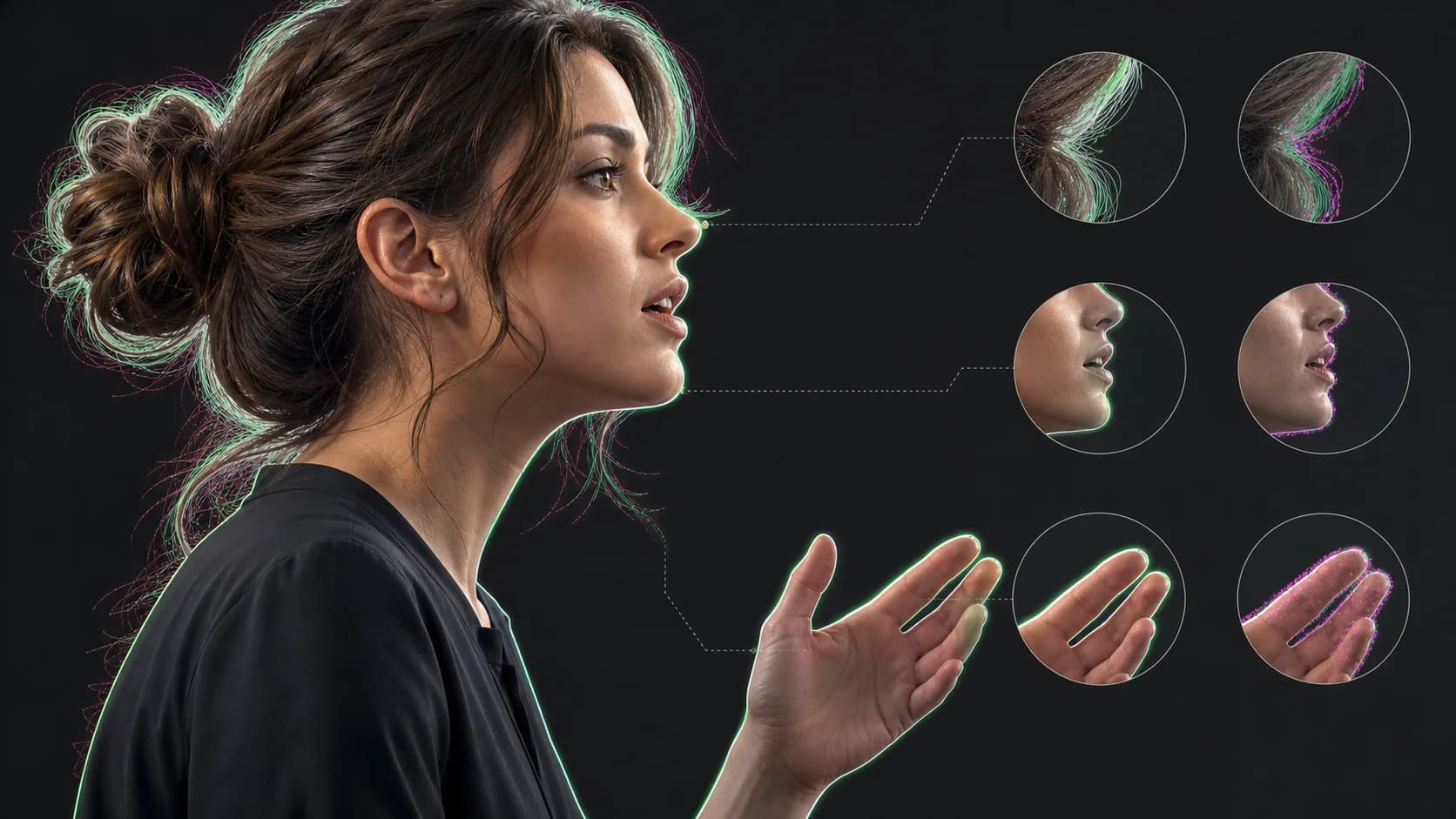
Protect the moving edge
Review hair, hands, motion blur, and every place the subject crosses another object.
Test the real delivery
Open the result in the actual browser, editor, presentation, or social workflow.
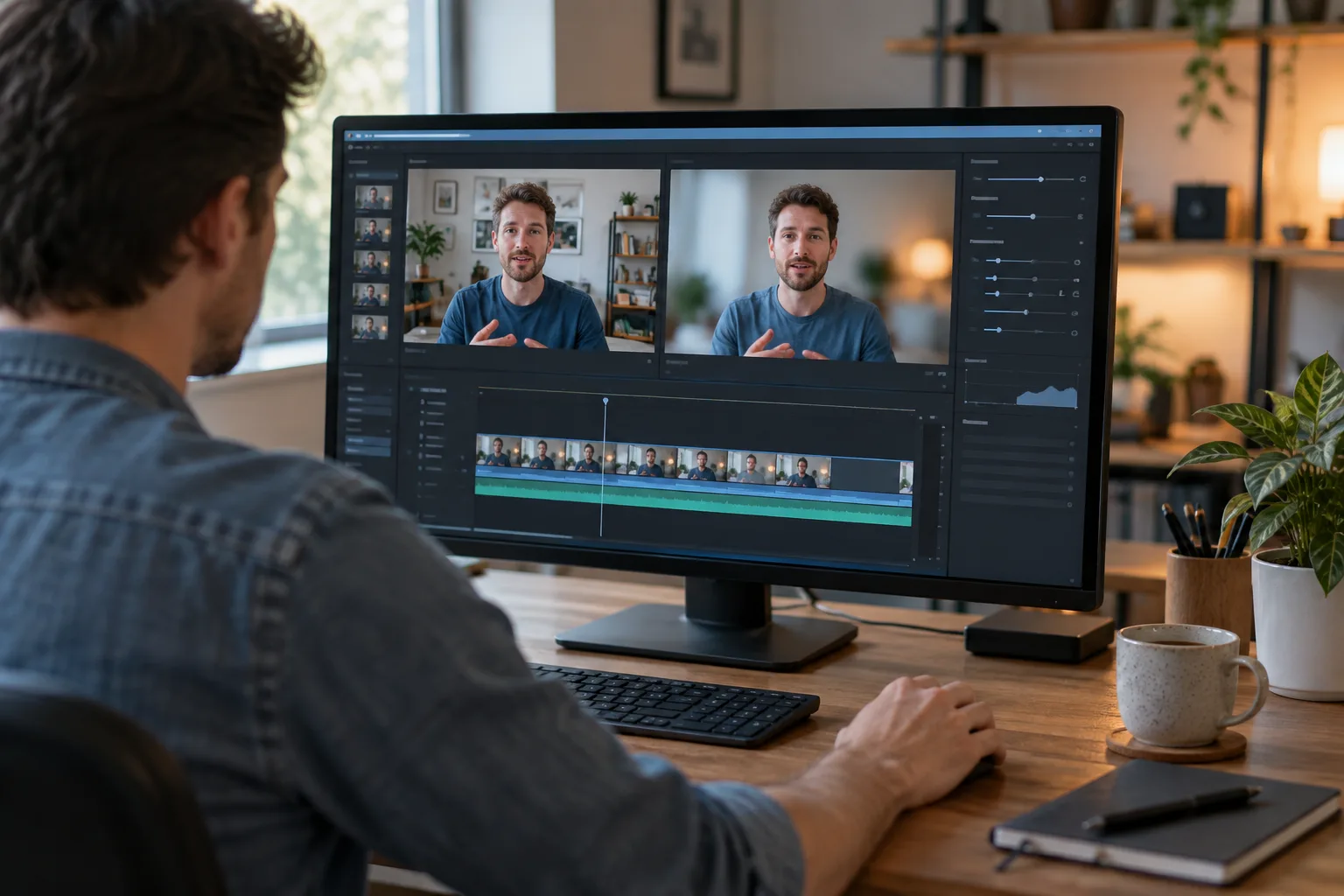
A shallow depth of field is easiest to create in camera, but it is not your only chance. Modern masking and person segmentation can separate a speaker from footage that has already been recorded. Once the foreground and room are independent layers, you can soften the room without making the face, hair, microphone, or gestures blurry too.
The result works best when it feels like a lens choice rather than a privacy filter pasted around a person. That means using restrained blur, preserving believable edge softness, and checking every moment where the subject turns, gestures, or crosses a detailed background.
Choose the right method for the source
- Edit recorded depth data when the phone or camera captured it. Compatible Cinematic-mode footage can retain focus points and adjustable depth of field.
- Use an AI person cutout for a talking head recorded in an ordinary room. This is the fastest general method when no depth map or green screen exists.
- Track a manual mask when the shot is short, the subject is simple, or the automatic edge needs a local repair.
- Use cropping or complete background replacement when the goal is to hide private information. Blur can leave shapes, screens, documents, and locations recognizable.
The clean two-layer workflow
- 01
Start with the original clip
Use the least-compressed file available. Messaging-app copies make hair and motion boundaries harder to recover.
- 02
Create the foreground
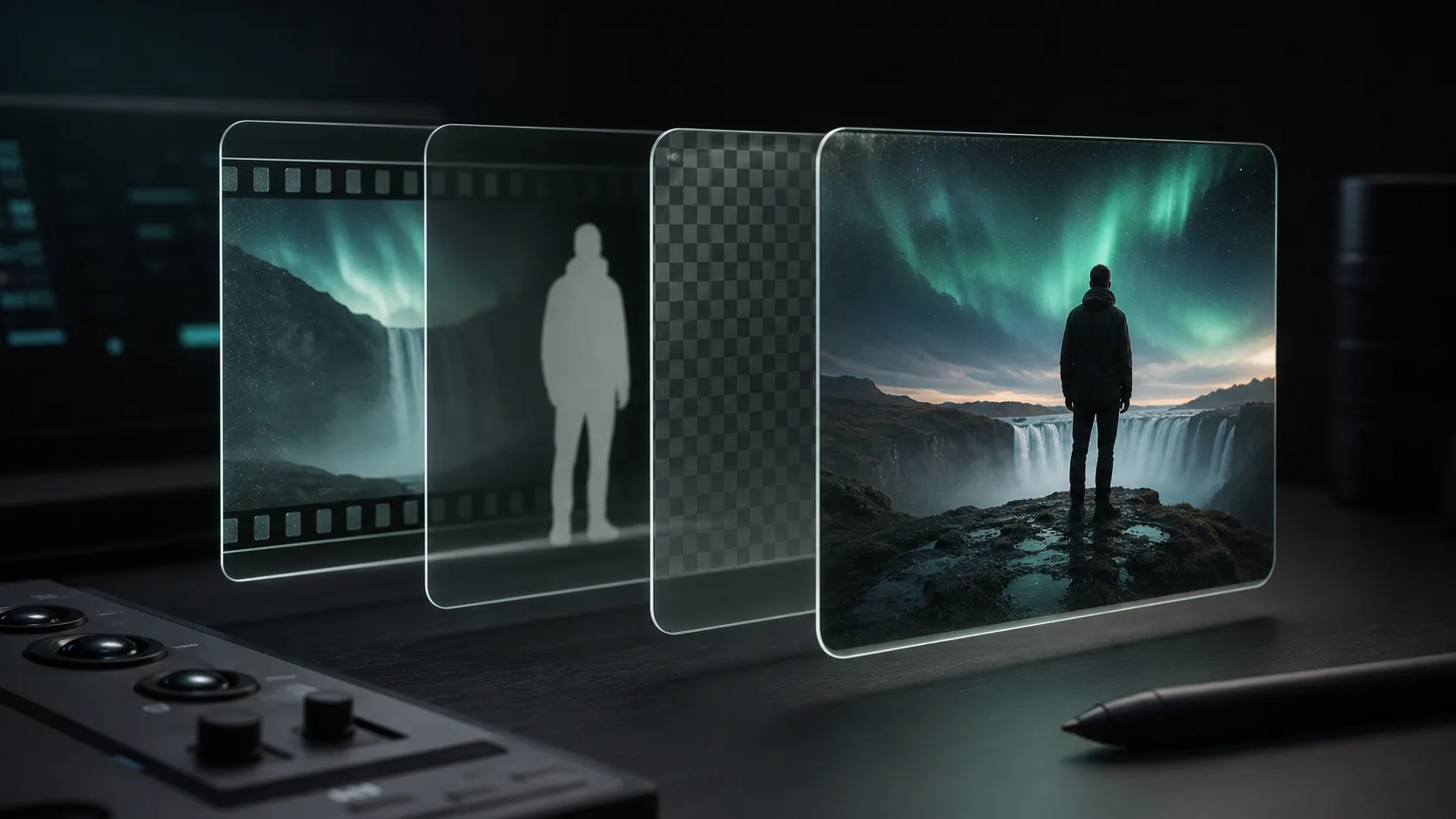
Remove the background or generate an alpha matte so the speaker becomes an independent layer.
- 03
Duplicate the original underneath
Keep one full-frame copy of the source as the background and place the isolated speaker directly above it.
- 04
Blur only the lower layer
Increase blur until the room stops competing with the face, not until every object becomes an abstract cloud.
- 05
Inspect motion and export
Watch hair, hands, glasses, microphones, and chair edges at normal speed before rendering the final MP4.
How much blur looks natural?
Begin with less blur than you think you need. Real lenses preserve broad shapes, light direction, and colour relationships even when a room is out of focus. Extreme blur can make a normal webcam recording resemble a video-call effect, especially when the cutout edge is sharp. A small amount of blur plus slightly lower background contrast often looks more credible than a very large blur radius.
Keep the background from bleeding through
Blur spreads colour. A bright window can create a pale ring behind dark hair, and a saturated wall can push colour into the shoulder edge. Expand the foreground slightly, use matte cleanup sparingly, or reduce the brightest background highlights before blurring. Test against a frame where hands move quickly and where the head crosses the highest-contrast part of the room.
Blur for style is different from blur for privacy
A tasteful soft background reduces distraction; it does not reliably anonymize the room. A monitor can remain readable enough to reveal a customer name. A document may still show its layout. Family photos, street views, badges, and location clues can remain identifiable. For sensitive material, crop the frame, cover the region with an opaque graphic, or replace the entire background and review the result frame by frame.
Common problems
- Halo around hair: reduce background contrast, refine the matte, and avoid using maximum blur as a repair tool.
- Blur leaks over the face: confirm that the sharp foreground is above the blurred layer and that the matte is not inverted.
- Hands briefly disappear: inspect motion blur in the source and repair only the affected section with a tracked holdout mask.
- The room pulses between sharp and soft: use one continuous background layer rather than applying an effect to an unstable selection.
- The result looks like a cutout: lower the blur, match colour and exposure between layers, and add a restrained contact shadow only when the composition justifies it.
Export for the final destination
When the blurred background is final, render it into a normal MP4 for broad playback and social uploads. Keep the transparent foreground or matte as a separate master if you may replace the room later. That source lets you create a sharp office, brand colour, slide deck, or different blur level without cutting the speaker out again.
Sources and further reading
Frequently asked questions
Can I blur a video background after it has been recorded?
Yes. If the clip has editable depth data, adjust its depth effect directly. Otherwise, isolate the person with AI or a tracked mask, place the cutout over a duplicate of the source, and blur only the lower layer.
Does background blur hide private information?
Not reliably. Blur can leave text, documents, faces, locations, and screen layouts recognizable. Crop, cover, or fully replace sensitive regions and review the entire video.
Why does artificial video blur create a halo?
Blurred background colours spread beneath an imperfect foreground edge. Refine the matte, control bright or saturated background areas, and use a restrained blur radius.
Quality gate
Three surfaces reveal different edge problems
Light background
Look for dark contamination, clipped hair, and hard matte boundaries.
Dark background
Look for pale halos, spill, and semitransparent noise around motion.
Final destination
Confirm playback, dimensions, compression, and transparency where viewers will see it.
Separate the speaker before adding blur
Create a transparent person layer or alpha matte, then control the room independently in your editor.
Create a clean cutout