Guide / remove video background without green screen
How to remove a video background without a green screen
A practical guide to removing video backgrounds with AI, including how to prepare your footage, choose an output, and fix rough edges.

The useful answer
Clean separation matters more than a perfect room. Give the model a visible subject, steady footage, and enough light, then export for the place the video will actually be used.
Remove a video backgroundDecision map
From source clip to useful output
Define the destination
Decide where “remove video background without green screen” must work before choosing a format or background.
Protect the moving edge
Review hair, hands, motion blur, and every place the subject crosses another object.
Test the real delivery
Open the result in the actual browser, editor, presentation, or social workflow.
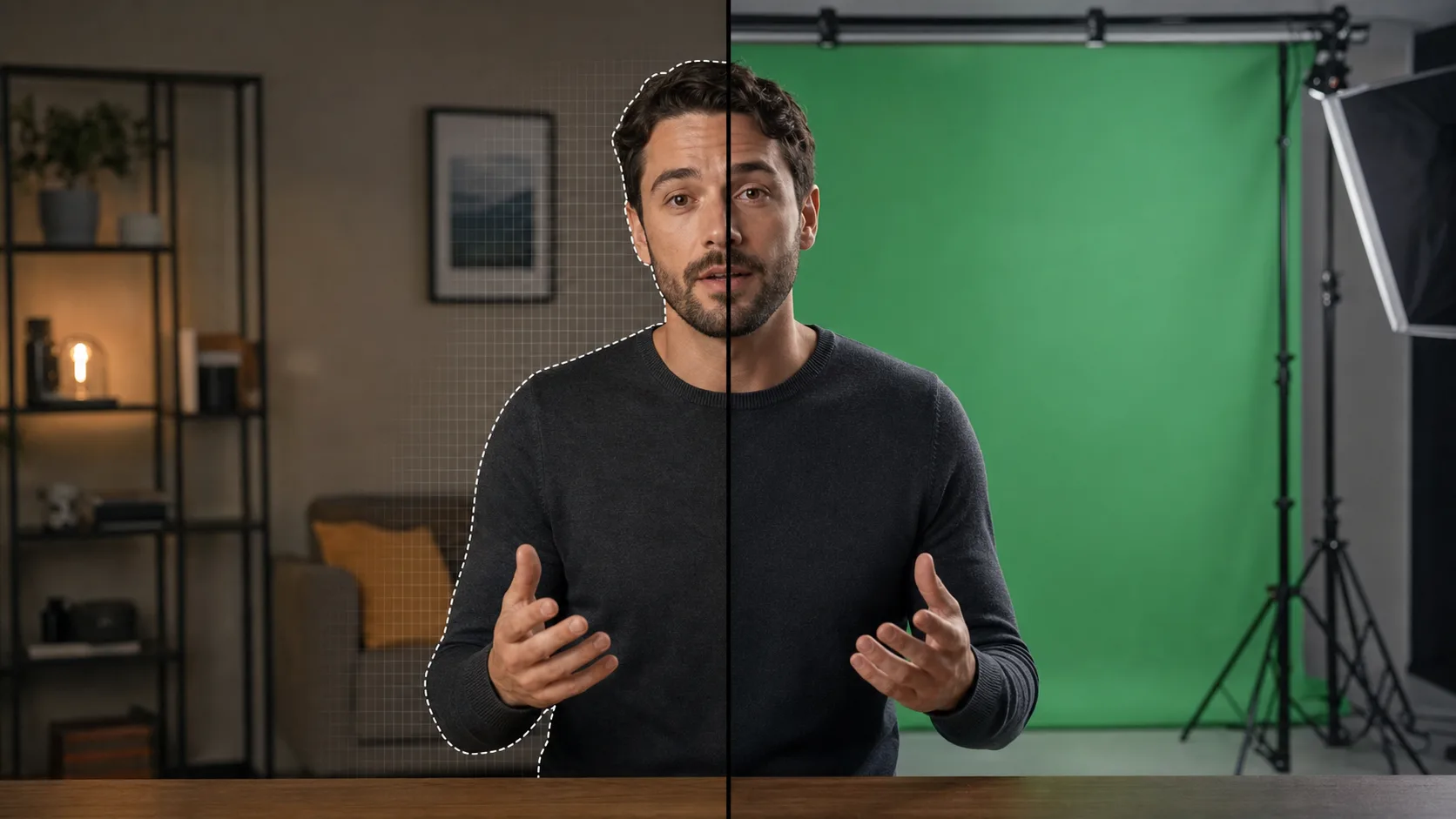
Green screens are useful, but they are no longer the entry ticket for a clean video cut-out. Modern video background removal follows the person in every frame and estimates which pixels belong to the foreground. That makes it possible to turn a desk recording, a course lesson, or a product demo into a transparent or newly composed video.
The result still depends on what you feed the model. Fine hair, fast hands, motion blur, and low light are difficult because the boundary changes from frame to frame. A little care before upload saves far more time than repairing hundreds of frames later.
The short version
- 01
Choose a clear clip
Use footage where the subject is visible, in focus, and not repeatedly leaving the frame.
- 02
Upload the original
Avoid sending a copy that has already been heavily compressed by a messaging app or social platform.
- 03
Pick the final background
Keep transparency for editing and web overlays, or render a solid colour or image when you need a ready-to-share video.
- 04
Inspect difficult moments
Check hair, hands, chair gaps, and the first and last seconds before you publish.
What AI background removal is doing
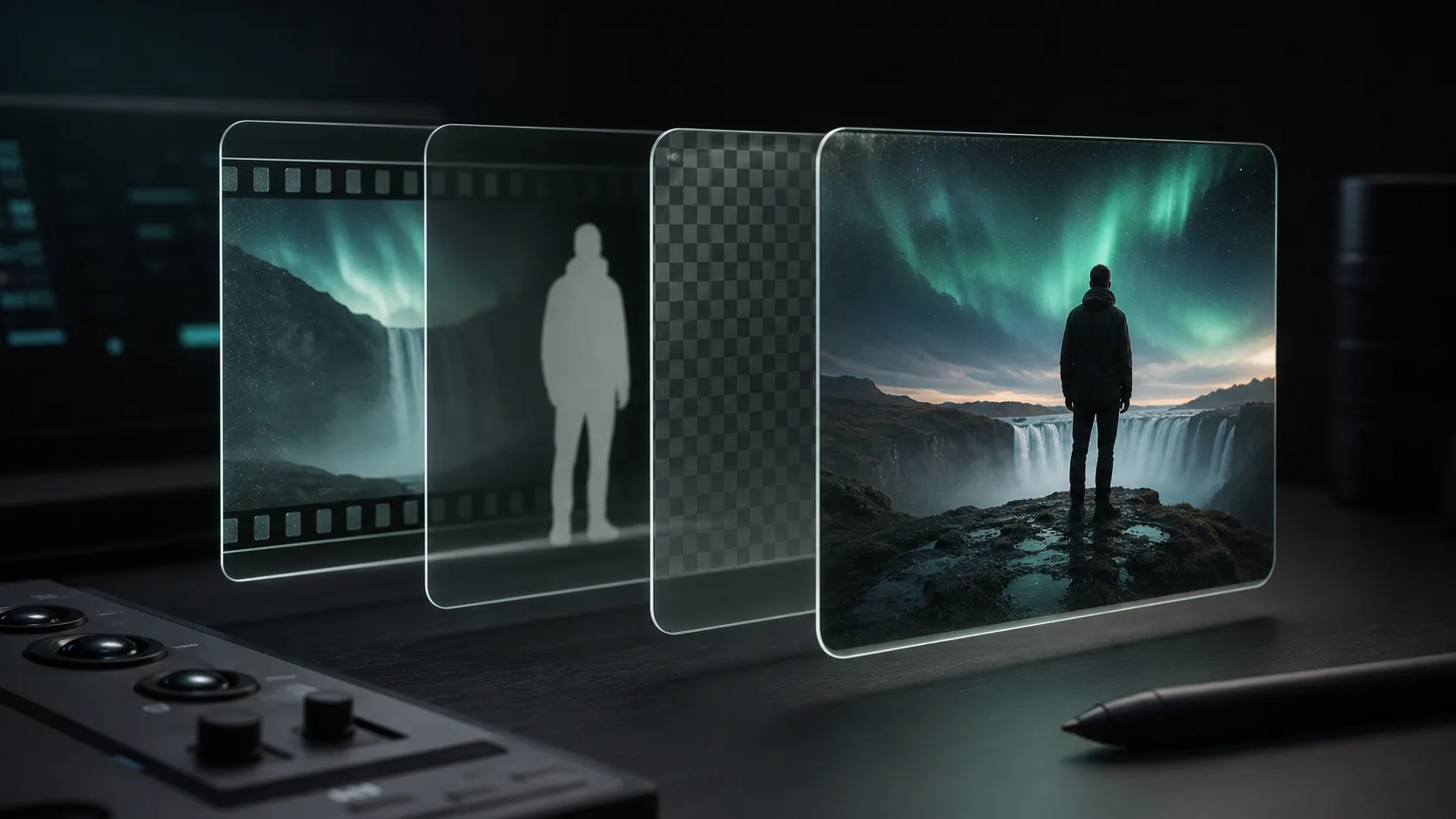
A background remover creates a matte: a moving grayscale map that marks foreground, background, and the soft transition between them. White represents the subject, black represents the removed background, and gray preserves partial transparency around details such as hair or motion blur. The visible video and this matte are combined to create the cut-out.
This is different from chroma keying. A green-screen workflow removes pixels based mainly on colour. An AI workflow identifies the subject from the scene, so the wall can be beige, blue, or cluttered. The tradeoff is that uncertain boundaries can briefly shimmer when the subject and background look too similar.
How to get a cleaner result before you upload
- Light the person from the front or slightly to one side. A face lit only by a monitor gives the model less information around the jaw and hair.
- Create contrast between subject and background. A dark jacket against a dark chair is harder to separate than the same jacket against a lighter wall.
- Keep the camera still when you can. Camera shake changes every edge at once and makes compression less efficient.
- Use a faster shutter or more light for energetic movement. Heavy motion blur turns fingers and hair into translucent streaks.
- Upload the highest-quality practical source. Resolution does not create detail that was never captured, but aggressive compression can destroy the detail you already had.
Choose the output before you process
Transparent video is not one universal file type. For a browser overlay, WebM with an alpha channel is compact and practical, but alpha playback should be tested in the browsers you support. For an editing timeline, a high-quality intermediate or a separate matte may fit better. For social media, render the new background into a normal MP4 because most social platforms do not preserve video transparency.
- Choose transparent WebM when the video will sit over a webpage, presentation, or compatible motion design tool.
- Choose a rendered MP4 when you already know the background and want a broadly playable final file.
- Choose a matte when your editor needs maximum control over edge treatment, colour correction, and compositing.
How to check the cut-out
Do not judge a transparent export on one background. Place it over black, white, and a saturated colour. A pale halo disappears on white but becomes obvious on black. Dark edge contamination does the opposite. Scrub through the fastest gestures and any moment when an object crosses the body.
Small defects often disappear at the final display size. Review once at 100 percent to find technical problems, then again at the size viewers will actually see. Fix what changes the viewing experience, not every imperfect pixel.
Common problems and practical fixes
- Halo around the subject: test a slightly softer edge or reduce colour spill in the compositor.
- Flickering hair: use a cleaner source, reduce compression, or choose a frame where hair is less backlit for the opening thumbnail.
- Missing fingers: look for motion blur or skin-toned objects in the background; a better-lit source is usually the strongest fix.
- Chair disappears: if the chair must remain, use a matte workflow that lets you restore it or process a wider foreground class.
- Output looks soft: compare against the uploaded source and export at the intended delivery resolution instead of repeatedly re-encoding.
When a green screen is still worth using
Use a green screen when you are shooting a high-volume series in a controlled studio, when props and furniture must stay in the foreground, or when the composite will be inspected frame by frame. Chroma keying gives an experienced editor direct control over the key. For one-off creator videos, remote interviews, internal training, and API-driven production, AI removal usually wins on setup time.
Sources and further reading
Quality gate
Three surfaces reveal different edge problems
Light background
Look for dark contamination, clipped hair, and hard matte boundaries.
Dark background
Look for pale halos, spill, and semitransparent noise around motion.
Final destination
Confirm playback, dimensions, compression, and transparency where viewers will see it.
Try it on a difficult ten seconds
Upload a clip with hair movement and a hand gesture. Backdrop gives you the first 30 seconds free, so you can judge the cut-out before committing the full video.
Remove a video background