Troubleshooting / fix video background removal edges
How to fix hair, halos, flickering, and rough edges in video cutouts
Improve difficult AI video cutouts by diagnosing source contrast, motion blur, temporal flicker, alpha interpretation, and edge contamination.

The useful answer
First decide whether the defect comes from the recording, the matte, alpha interpretation, or the new background. Then make the smallest correction that improves motion without turning soft detail into a hard sticker edge.
Test a difficult clipDecision map
From source clip to useful output
Define the destination
Decide where “fix video background removal edges” must work before choosing a format or background.
Protect the moving edge
Review hair, hands, motion blur, and every place the subject crosses another object.
Test the real delivery
Open the result in the actual browser, editor, presentation, or social workflow.
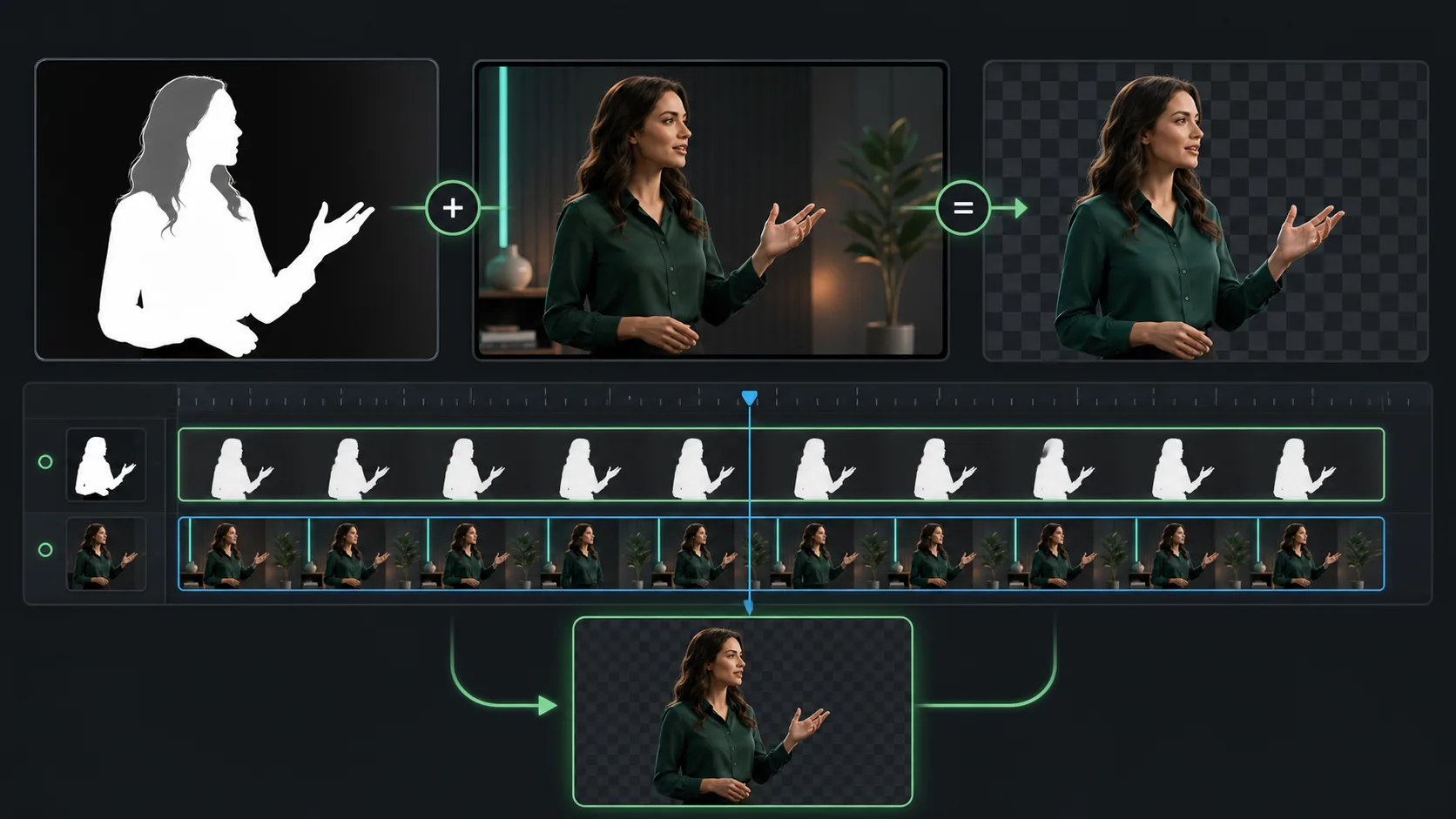
The difficult part of video background removal is not identifying a person in one frame. It is keeping a believable, stable boundary across every frame. Loose hair, blurred fingers, transparent glasses, and clothing similar to the room all create uncertainty that can change from moment to moment.
Diagnose the defect on three backgrounds
Place the cutout over white, black, and a saturated color. A pale halo becomes obvious on black. A dark fringe becomes obvious on white. Missing semi-transparent detail is easiest to see on a saturated field. Play the clip at normal speed and also step through the hardest gesture frame by frame.
Hair looks clipped or crunchy
- Return to a source with less compression and more edge contrast if available.
- Avoid aggressive matte choking; it removes partial transparency along fine hair.
- Use a gentle edge light during recording when hair blends into the wall.
- Judge natural motion at playback speed instead of demanding every strand become a hard opaque pixel.
A white or dark halo surrounds the subject
Halos often come from the original background color leaking into semi-transparent edge pixels or from incorrect premultiplication. Interpret the alpha correctly, use remove-color-matting or spill-suppression controls when available, and composite against a background with similar brightness. A tiny inward edge adjustment can help, but excessive contraction makes shoulders, ears, and fingers look cut out with scissors.
The edge flickers from frame to frame
Flicker is a temporal problem. A frame-by-frame blur may hide it while also making the entire subject swim. Start with a better source, then use temporal matte smoothing if the compositor provides it. Apply correction only to the matte, not the color image, and inspect moments when hands cross the torso or hair moves quickly.
Hands or objects disappear
- 01
Check motion blur
A faster shutter or slower gesture can preserve finger boundaries on a reshoot.
- 02
Check similarity
Skin-toned furniture and sleeves matching the wall reduce separation.
- 03
Check the model's foreground assumption
A people-focused cutout may not keep a prop. Use an alpha matte plus manual correction for important objects.
- 04
Patch only the valuable section
For a short commercial shot, a localized holdout mask is often faster than degrading the full clip.
When to reshoot
Reshoot when the same failure persists across many frames and is caused by low light, severe compression, matching wardrobe, or broad motion blur. Refining hundreds of damaged frames costs more than repeating a short talking-head take with clearer light and contrast.
Sources and further reading
Frequently asked questions
Why does hair disappear after background removal?
Fine hair is partly transparent and easily blends with a similar or overexposed background. Better source contrast and gentle matte refinement usually work better than aggressive edge sharpening.
How do I remove a white outline around a video cutout?
Check alpha interpretation and background-color contamination first. Use matte cleanup or remove-color-matting controls, then test on both light and dark backgrounds.
Can flickering edges be fixed automatically?
Temporal matte smoothing can reduce small changes, but it cannot recreate detail lost to blur, compression, or poor contrast. A better source or localized manual correction may be necessary.
Quality gate
Three surfaces reveal different edge problems
Light background
Look for dark contamination, clipped hair, and hard matte boundaries.
Dark background
Look for pale halos, spill, and semitransparent noise around motion.
Final destination
Confirm playback, dimensions, compression, and transparency where viewers will see it.
Stress-test the hardest ten seconds
Use hair movement, a hand gesture, and the most difficult background to learn whether the source is ready.
Test a difficult clip