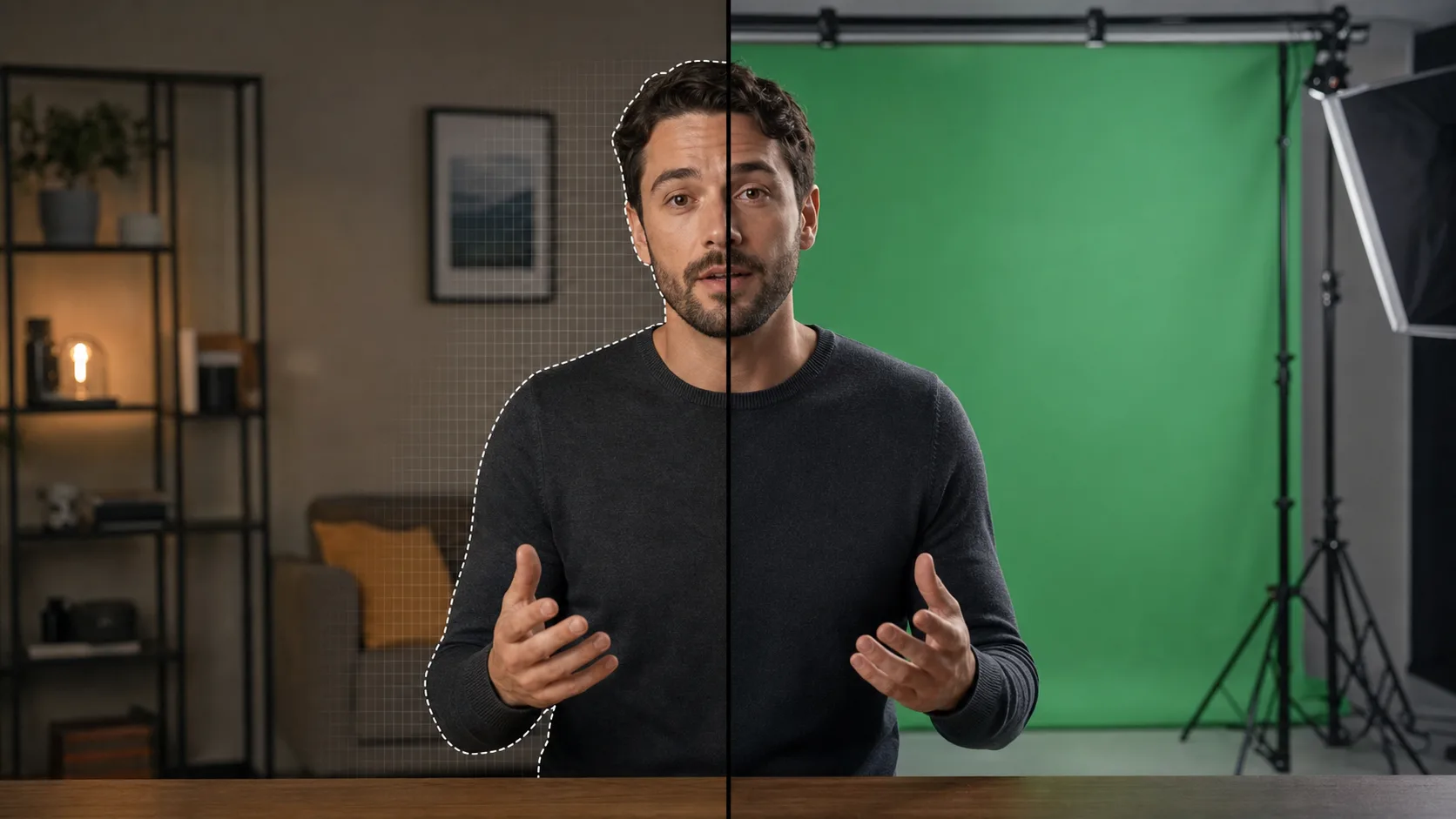
Formats / transparent video format
Transparent video formats: WebM, MP4, ProRes, or a matte?
Compare transparent video delivery options for websites, editors, presentations, and social media without confusing containers, codecs, and alpha channels.
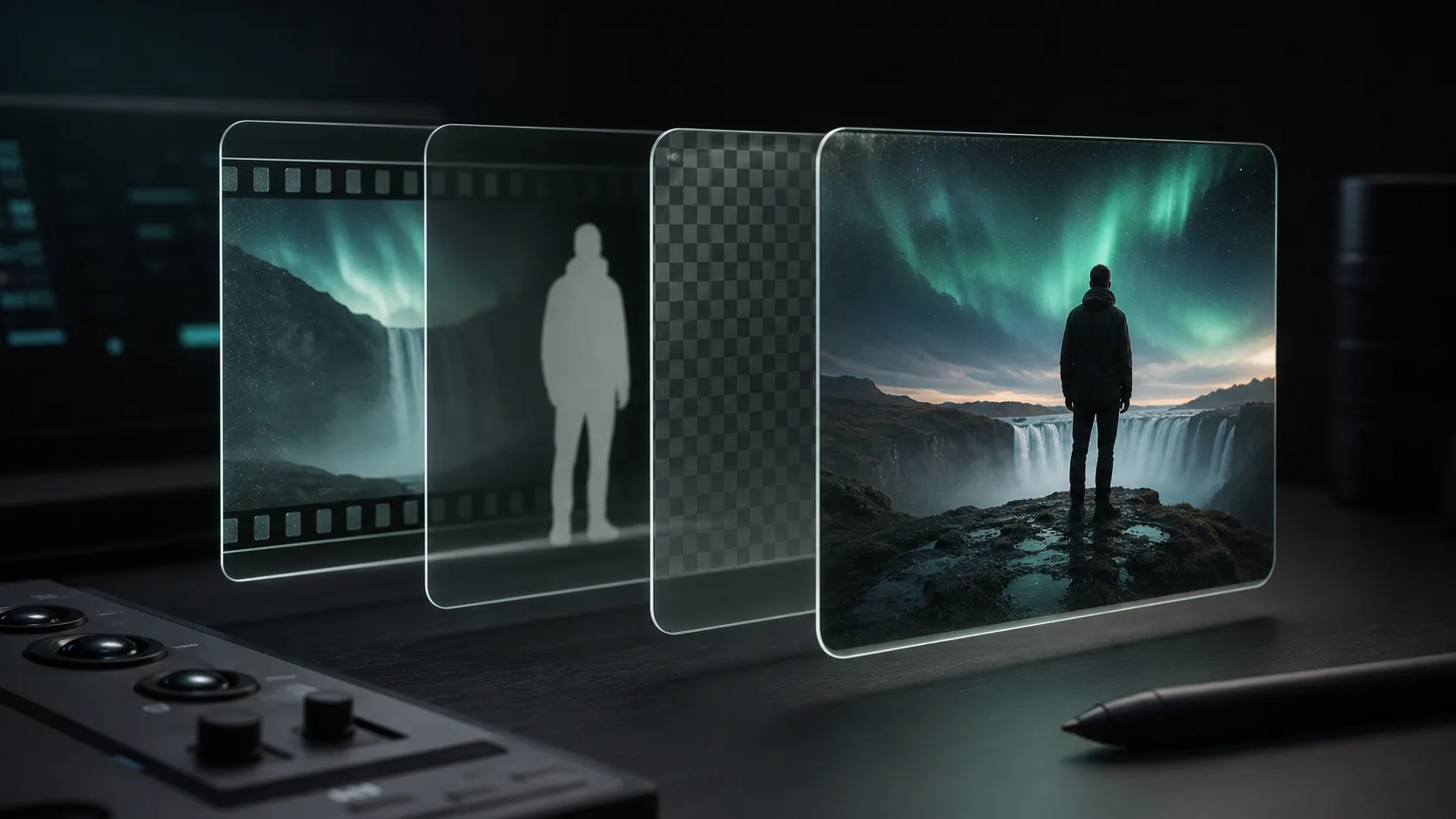
The useful answer
Use transparent WebM for tested browser overlays, an editing-friendly alpha format or matte for post-production, and a normal MP4 after the replacement background has been rendered in.
Remove a video backgroundDecision map
From source clip to useful output
Define the destination
Decide where “transparent video format” must work before choosing a format or background.
Protect the moving edge
Review hair, hands, motion blur, and every place the subject crosses another object.
Test the real delivery
Open the result in the actual browser, editor, presentation, or social workflow.
A transparent video needs more than a file extension. The file has to contain a transparency channel, the video codec has to preserve it, and the player has to decode it. If any link in that chain drops alpha, the background becomes black, white, or opaque.
The simplest way to choose is to start at the destination. A website, an editing timeline, a presentation, and a social feed have different priorities. There is no single transparent format that is best everywhere.
Container, codec, and alpha are different things
The container is the file wrapper, such as WebM, MP4, or MOV. The codec is the method used to compress the picture, such as VP9 or H.264. Alpha is the per-pixel transparency information. A container may accept several codecs, and a codec may behave differently across players. That is why two files with the same extension can have different capabilities.
WebM with VP8 or VP9 alpha
WebM is the practical web delivery choice when you need a person or object to sit directly over HTML content. VP8 and VP9 can carry alpha transparency, and the file can be placed in a normal video element. It is generally much smaller than a high-quality editing intermediate.
Browser support requires care. MDN notes broad playback support for VP8 and VP9, but also notes that Safari does not support alpha transparency for those formats. Test the transparent result, not just whether the video plays. A fallback with the background already rendered is the safest path when every visitor must see the same composition.
- Best for: web overlays, interactive explainers, product tours, and browser-based presentations.
- Strengths: real transparency, relatively efficient delivery, and native HTML video playback in supporting environments.
- Watch for: alpha compatibility, file size on mobile, autoplay rules, and the cost of decoding several transparent videos at once.
MOV with an editing codec and alpha
For post-production, choose a codec designed to move between editing and compositing tools while preserving alpha. ProRes 4444 is a common example inside a MOV container. These files retain more image information and are easier to manipulate, but they are much larger than web delivery files.
- Best for: Premiere Pro, Final Cut Pro, After Effects, motion design, and handoff to another editor.
- Strengths: strong edge fidelity, predictable compositing, and fewer visible losses during an editing workflow.
- Watch for: large uploads, large storage needs, and poor suitability for direct website playback.
MP4 after compositing
A conventional H.264 MP4 is a strong final-delivery format after the new background has been rendered into the picture. It is widely playable, uploads cleanly to social platforms, and is easy to send to clients. It is not the file to choose when the next person still needs to change the background.
- Best for: YouTube, LinkedIn, learning platforms, email handoff, and approved final cuts.
- Strengths: broad playback support and a familiar quality-to-size tradeoff.
- Watch for: no editable transparency in the usual H.264 workflow and quality loss from repeated exports.
A separate matte
A matte is a grayscale video where white keeps the foreground, black removes the background, and gray represents partial transparency. Delivering the original picture and matte separately gives an editor control over edge softness, spill cleanup, and foreground restoration. It also avoids depending on one alpha-capable file format.
- Best for: demanding composites, review workflows, and tools that accept a luma or track matte.
- Strengths: flexible, inspectable, and easy to adjust independently from the source colour.
- Watch for: two files that must remain frame-accurate, matching duration and frame rate, and a more technical handoff.
Decision guide
- 01
Will the viewer change the background in a browser?
Start with transparent WebM and provide a tested fallback for environments that do not render its alpha channel.
- 02
Will an editor keep working on the composite?
Use an editing-friendly alpha format or provide the source plus a matte.
- 03
Is the background already approved?
Render it into the picture and deliver a conventional MP4.
- 04
Does the target app claim transparency support?
Upload a five-second sample first. Support can differ by app version, operating system, codec, and import path.
Quality checks before handoff
- Confirm alpha exists by placing the video over a coloured layer in the destination app.
- Match the source frame rate and check that audio remains in sync.
- Inspect semi-transparent hair and motion blur, not only hard shoulder edges.
- Check whether the player premultiplies alpha differently, which can appear as a light or dark fringe.
- Name files by purpose, for example presenter-web-alpha.webm, presenter-edit-alpha.mov, and presenter-final.mp4.
Sources and further reading
Quality gate
Three surfaces reveal different edge problems
Light background
Look for dark contamination, clipped hair, and hard matte boundaries.
Dark background
Look for pale halos, spill, and semitransparent noise around motion.
Final destination
Confirm playback, dimensions, compression, and transparency where viewers will see it.
Try it on a difficult ten seconds
Upload a clip with hair movement and a hand gesture. Backdrop gives you the first 30 seconds free, so you can judge the cut-out before committing the full video.
Remove a video background