Guide / change background color video
How to change the background color of a video
Change a video background color without a green screen, choose an accessible brand color, fix rough edges, and export a clean, platform-ready result.
The useful answer
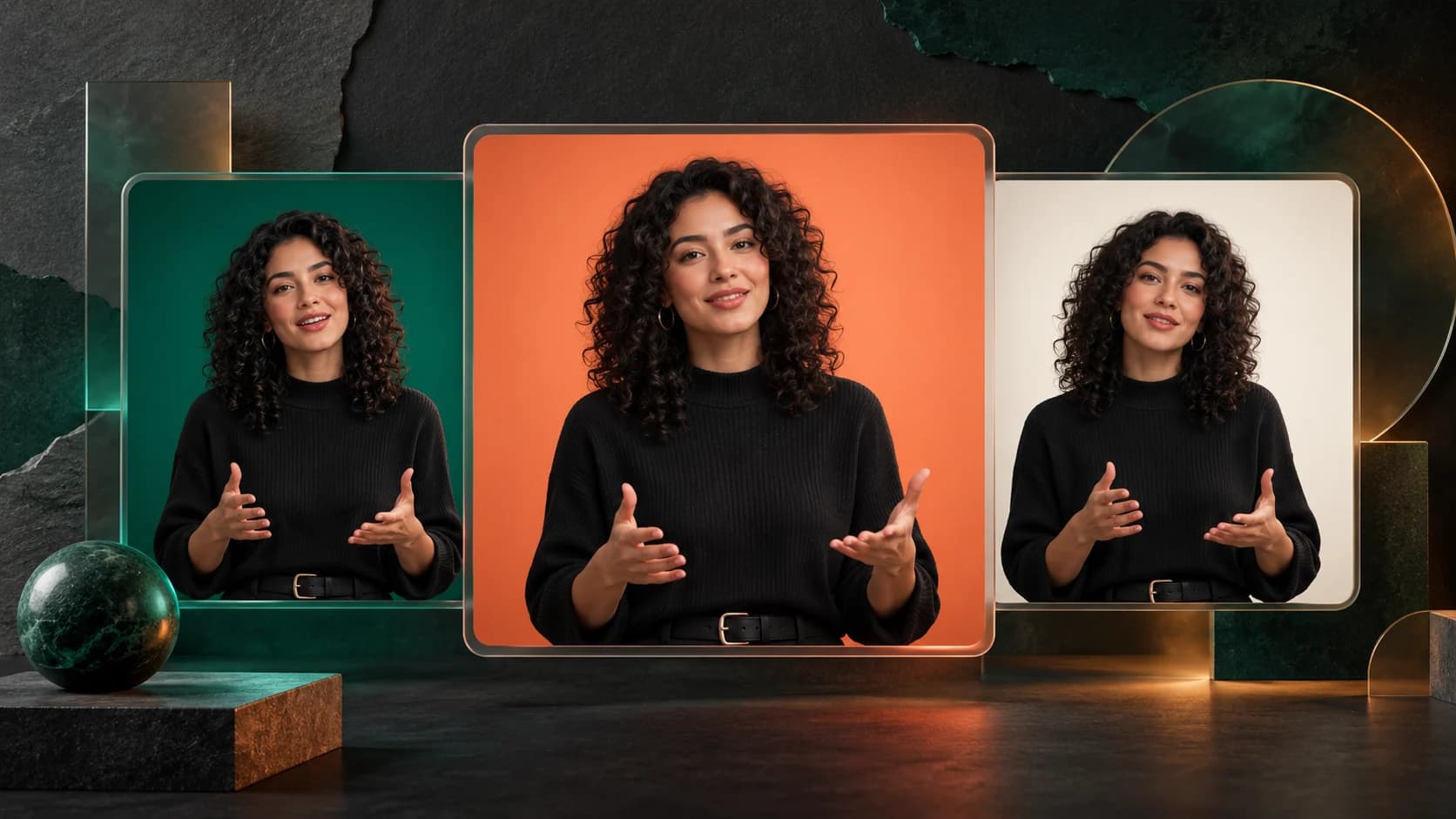
Remove the original room, place the cutout over an exact HEX color, and judge the result in motion. Choose a background that separates from the subject and keeps captions readable, then render a normal MP4 for social and presentation use.
Change a video backgroundDecision map
From source clip to useful output
Define the destination
Decide where “change background color video” must work before choosing a format or background.
Protect the moving edge
Review hair, hands, motion blur, and every place the subject crosses another object.
Test the real delivery
Open the result in the actual browser, editor, presentation, or social workflow.
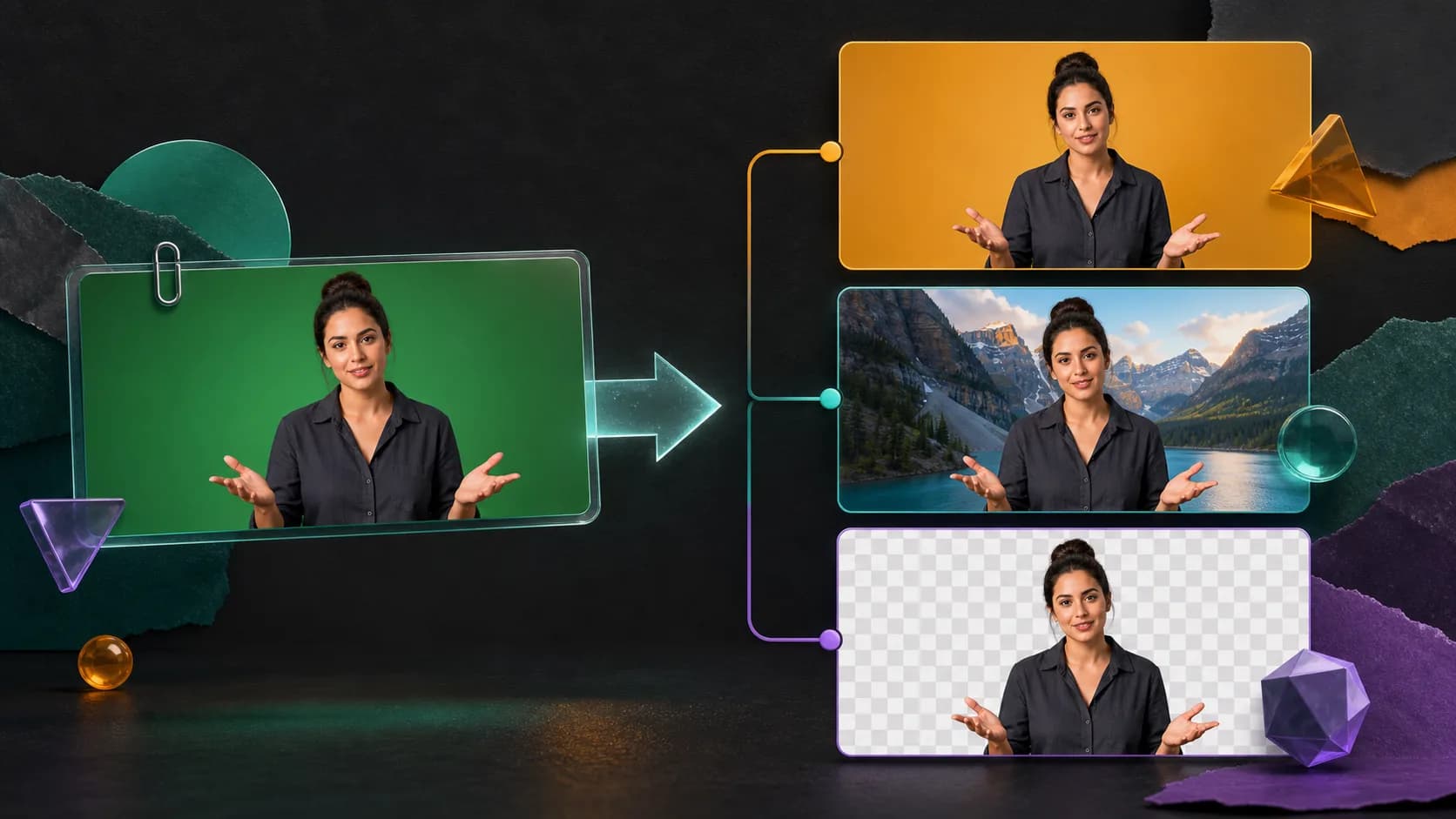
To change the background color of a video, first separate the person from the original scene. Then place that cutout over a solid color layer and export the finished composition. You do not need a green screen when an AI background remover can follow the subject through ordinary footage.
The technical steps are simple; the visual decisions are where results succeed or fail. A color that matches the shirt can erase the silhouette. A bright brand color can make skin look dull. Captions that looked readable on white may disappear on yellow. Choose the complete layout—not just an attractive swatch—before processing a long video.
The fastest clean workflow
- 01
Start with the original clip
Use the highest-quality source available. A messaging-app copy can introduce compression blocks around hair and hands before background removal begins.
- 02
Remove the existing background
Create a transparent foreground or alpha matte so the person and the new color remain independent layers.
- 03
Add the exact color underneath
Use a HEX, RGB, or approved brand value instead of matching a screenshot by eye. Keep that value with the project notes.
- 04
Check the moving edge
Play head turns, gestures, glasses, loose hair, and motion blur over the new color at normal speed.
- 05
Add text and export
Confirm caption contrast and safe areas, then render the color into a standard MP4 for broad compatibility.
Pick a color that separates the subject
Judge the color beside the actual speaker, clothing, product, captions, and logo. Light clothing usually reads better on a mid-tone or dark background; dark hair and jackets need enough luminance difference to preserve their outline. Saturation matters too: an intense background can overpower natural skin tones even when the brightness contrast is technically strong.
- Use a neutral off-white, charcoal, or muted brand tone when the speaker should feel trustworthy and editorial.
- Use one saturated accent color for short hooks, chapter cards, or campaign variants—not automatically for an entire long video.
- Avoid a color that closely matches large areas of hair, clothing, or the featured product.
- Test the final frame on both a bright phone and a dim laptop; perceived color and edge visibility change with the display.
Use one source of truth for brand color
Enter the approved HEX value whenever the editor supports it. Microsoft’s Clipchamp documentation, for example, describes selecting a background with a HEX value, eyedropper, or HSV picker. A typed value is easier to reproduce across videos than a color sampled from a compressed logo or screenshot. If the platform converts color during export, compare the rendered frame with the brand reference rather than trusting the preview alone.
Make captions readable on the new background
For web content, WCAG’s minimum contrast guidance is a useful baseline: normal text should reach a 4.5:1 contrast ratio and large text 3:1. Video captions are not always evaluated exactly like HTML text, but the viewing problem is the same. Test every caption state over the chosen color, the speaker, and any animated transition. A small opaque caption panel or restrained shadow is safer than hoping white text works everywhere.
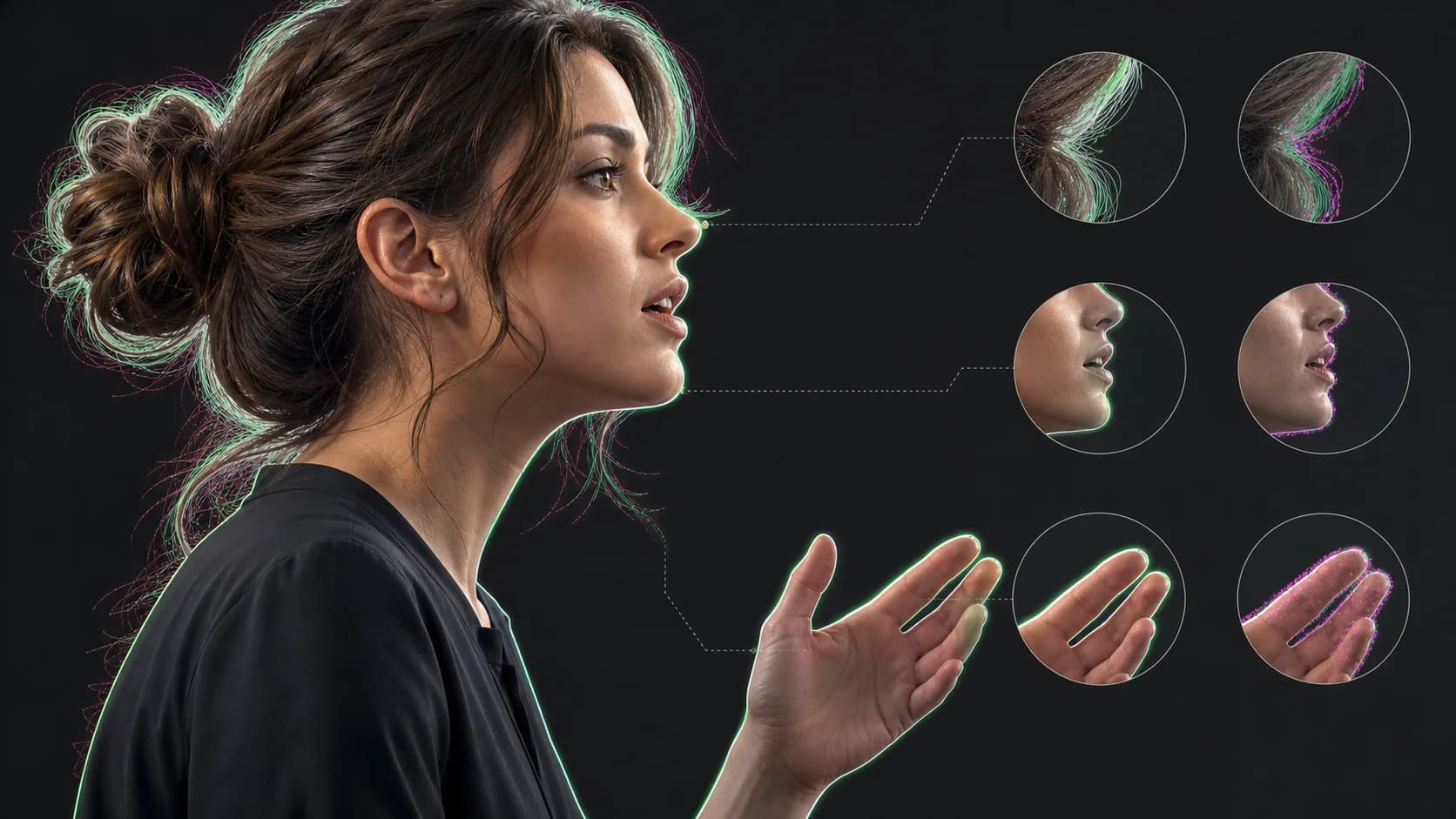
Fix halos before changing the color again
A pale or dark ring around the subject is usually an edge problem, not a bad background choice. Inspect the matte over white, black, and a saturated test color. If the ring follows the person on every background, refine the mask, reduce color contamination, or return to a cleaner source. Adobe’s object-masking guidance also recommends beginning from a frame where the subject is most clearly visible, which gives automatic tracking a better starting point.
- Hair looks cut out: soften only the edge that needs it; do not blur the entire foreground.
- Hands disappear during gestures: inspect the source for motion blur and repair the affected section rather than weakening every frame.
- Old wall color remains around shoulders: use edge decontamination or a small matte contraction while watching fine clothing detail.
- The result feels flat: reduce background saturation, match exposure, and add a subtle grounded shadow only when the composition supports one.
Export the background color into the final video
When the color is final, render the complete composition as MP4 for social media, course platforms, email landing pages, and ordinary video players. Keep the transparent foreground or matte as a separate master if you expect future brand variants. That master lets you create a blue, cream, or seasonal version without removing the original room again.
Sources and further reading
Frequently asked questions
How do I change the background color of a video?
Remove the original background to create a foreground cutout, add a solid-color layer underneath it, inspect the moving edge, and export the finished composition. AI removal can do this without a green screen.
Which background color is best for a video?
Choose a color that contrasts with the subject, keeps skin tones natural, supports the brand, and leaves captions readable. Test the full composition instead of choosing a swatch in isolation.
Can I keep the video background transparent instead?
Yes, when another editor or compatible website needs to choose the background later. For social media and ordinary playback, render the approved color into a standard MP4.
Quality gate
Three surfaces reveal different edge problems
Light background
Look for dark contamination, clipped hair, and hard matte boundaries.
Dark background
Look for pale halos, spill, and semitransparent noise around motion.
Final destination
Confirm playback, dimensions, compression, and transparency where viewers will see it.
Try the color on a difficult ten seconds
Remove the room, place the subject over your exact brand color, and inspect hair and hands before processing the full video.
Change a video background