Guide / change background in a video
How to change a video background online: image, color, or transparent
Change the background in a video, add an image or solid color, and choose the right output for social media, websites, editors, and presentations.
The useful answer
Use a rendered image or color background for the widest playback support. Keep transparency only when the next editor, website, or design tool genuinely needs to choose the background later.
Change a video backgroundDecision map
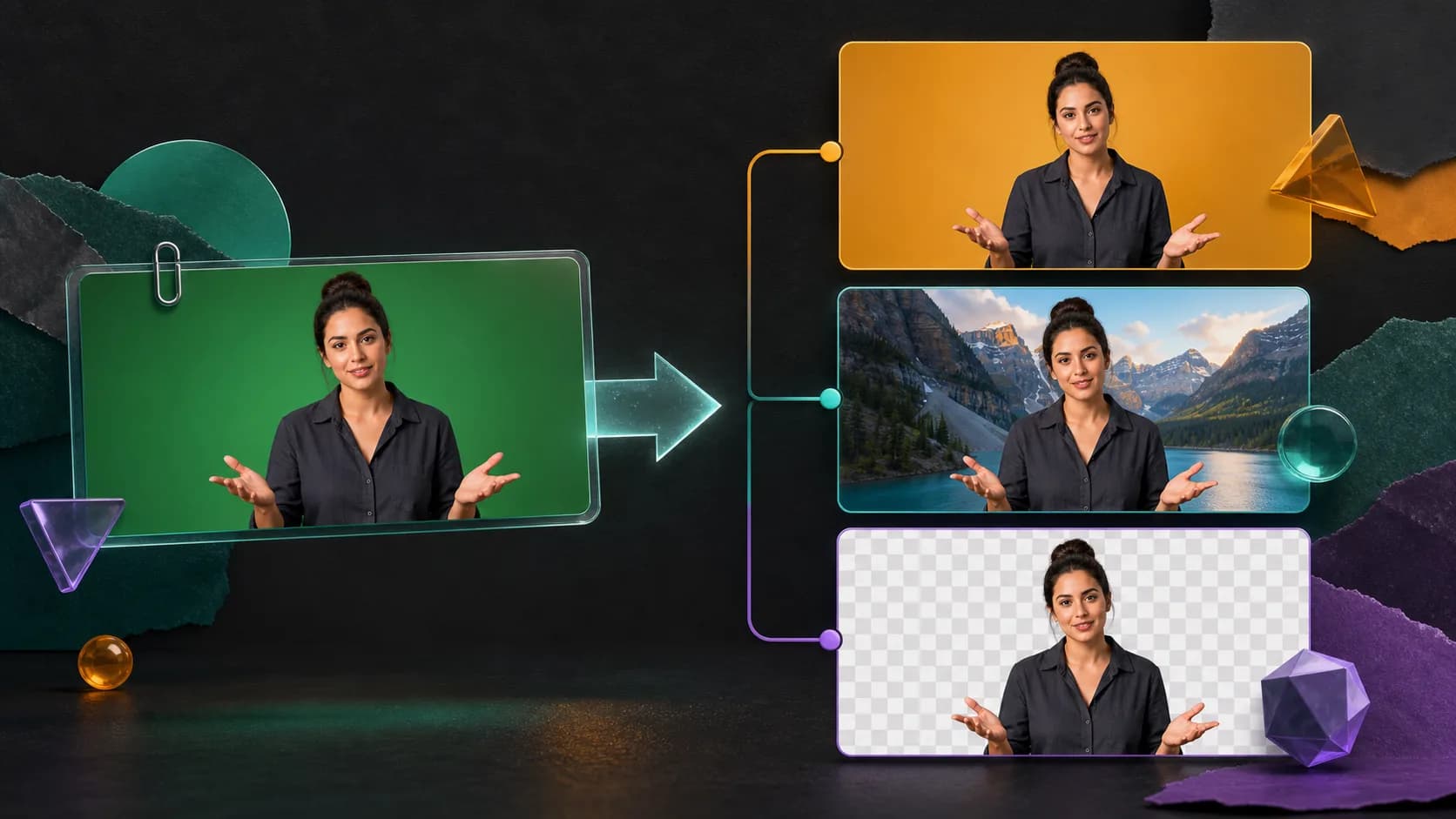
From source clip to useful output
Define the destination
Decide where “change background in a video” must work before choosing a format or background.
Protect the moving edge
Review hair, hands, motion blur, and every place the subject crosses another object.
Test the real delivery
Open the result in the actual browser, editor, presentation, or social workflow.
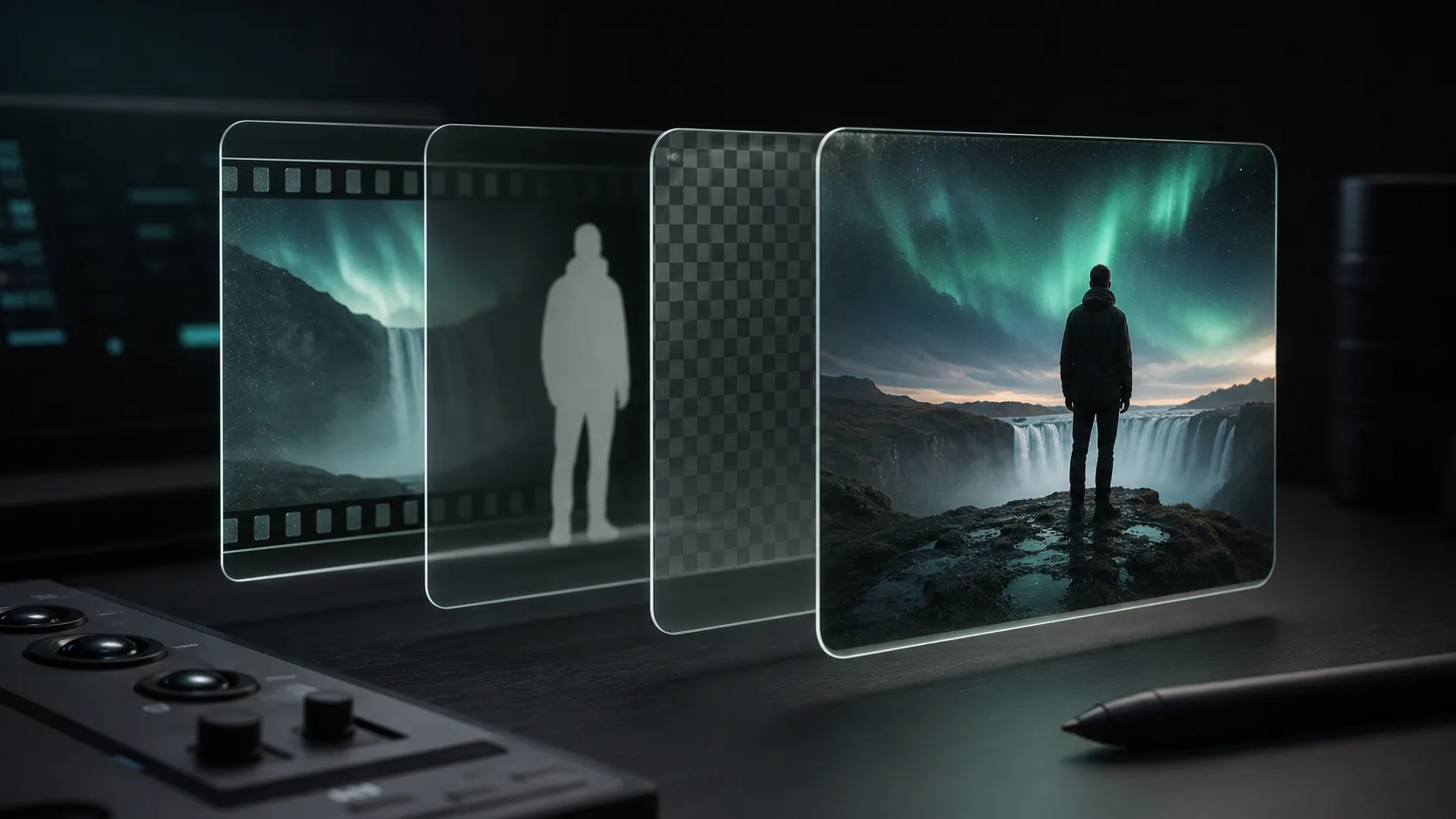
Changing a video background has three distinct jobs: separate the subject, choose the new scene, and export for the final destination. The cleanest result comes from making the destination decision before you upload, because a social post, editor timeline, and website overlay need different files.
Choose the output before removing anything
- Choose a solid color when you need a fast, consistent brand background and a normal MP4.
- Choose an image when the environment is already approved and should travel inside the final video.
- Choose transparent output when another editor or website must place the subject later.
- Choose an alpha matte when your compositor needs maximum control over edge refinement.
Step-by-step browser workflow
- 01
Prepare the source
Use the original upload, trim dead time, and keep visible contrast around hair, shoulders, and hands.
- 02
Upload the clip
Start with ten difficult seconds if the full video is long or expensive to process.
- 03
Select the background type
Choose transparent, color, image, blur, or matte based on the destination rather than personal preference.
- 04
Review the moving edge
Scrub through gestures, head turns, motion blur, and objects crossing the body.
- 05
Download and test
Open the result in the real editor, browser, presentation, or social workflow before processing the remaining footage.
How to choose a replacement image
Match the perspective, light direction, and camera height of the source. A waist-up person lit softly from camera-left will look pasted onto a scene with hard sunlight from camera-right. Slightly blur a replacement room when the source subject was shot with shallow depth of field. Leave enough contrast behind hair and clothes so the silhouette remains readable.
Solid colors are underrated
A restrained brand color often looks cleaner than a synthetic office or beach. It compresses well, avoids perspective mistakes, and keeps attention on the speaker. For course chapters, support videos, and product explainers, alternating a small set of approved colors can create variety without visual noise.
When transparency is the wrong answer
Do not keep alpha merely because it sounds flexible. Transparent video can be larger, harder to preview, and less compatible. If TikTok, Instagram, YouTube, email, or a normal video player is the final destination, place the approved background now and export a standard MP4.
Quality-control checklist
- Inspect the result over light, dark, and saturated backgrounds.
- Check the fastest hand movement and loosest hair, not only the opening frame.
- Confirm the replacement background matches the source perspective and light.
- Play the downloaded file in its actual destination.
- Keep the original and one high-quality master for future versions.
Sources and further reading
Frequently asked questions
How do I edit a background into a video?
Separate the subject from the original scene, place the new image, color, or video on a layer underneath, match its perspective and lighting, then export the finished composition.
Which background output is best for social media?
Render the chosen color, image, or video into a standard MP4 because social platforms generally do not preserve transparent video alpha.
Should I use a photo or solid color background?
Use a solid color for consistency and compression. Use a photo when the setting contributes meaning and its perspective and lighting match the source.
Quality gate
Three surfaces reveal different edge problems
Light background
Look for dark contamination, clipped hair, and hard matte boundaries.
Dark background
Look for pale halos, spill, and semitransparent noise around motion.
Final destination
Confirm playback, dimensions, compression, and transparency where viewers will see it.
Change one difficult scene first
Upload a short sample, compare transparent, color, image, and blur outputs, then commit to the complete video.
Change a video background