Creators / present over slides video
How to make course videos and present over slides without a green screen
Record an instructor in an ordinary room, remove the background, and design readable lessons with slides, demonstrations, captions, and consistent layouts.
The useful answer
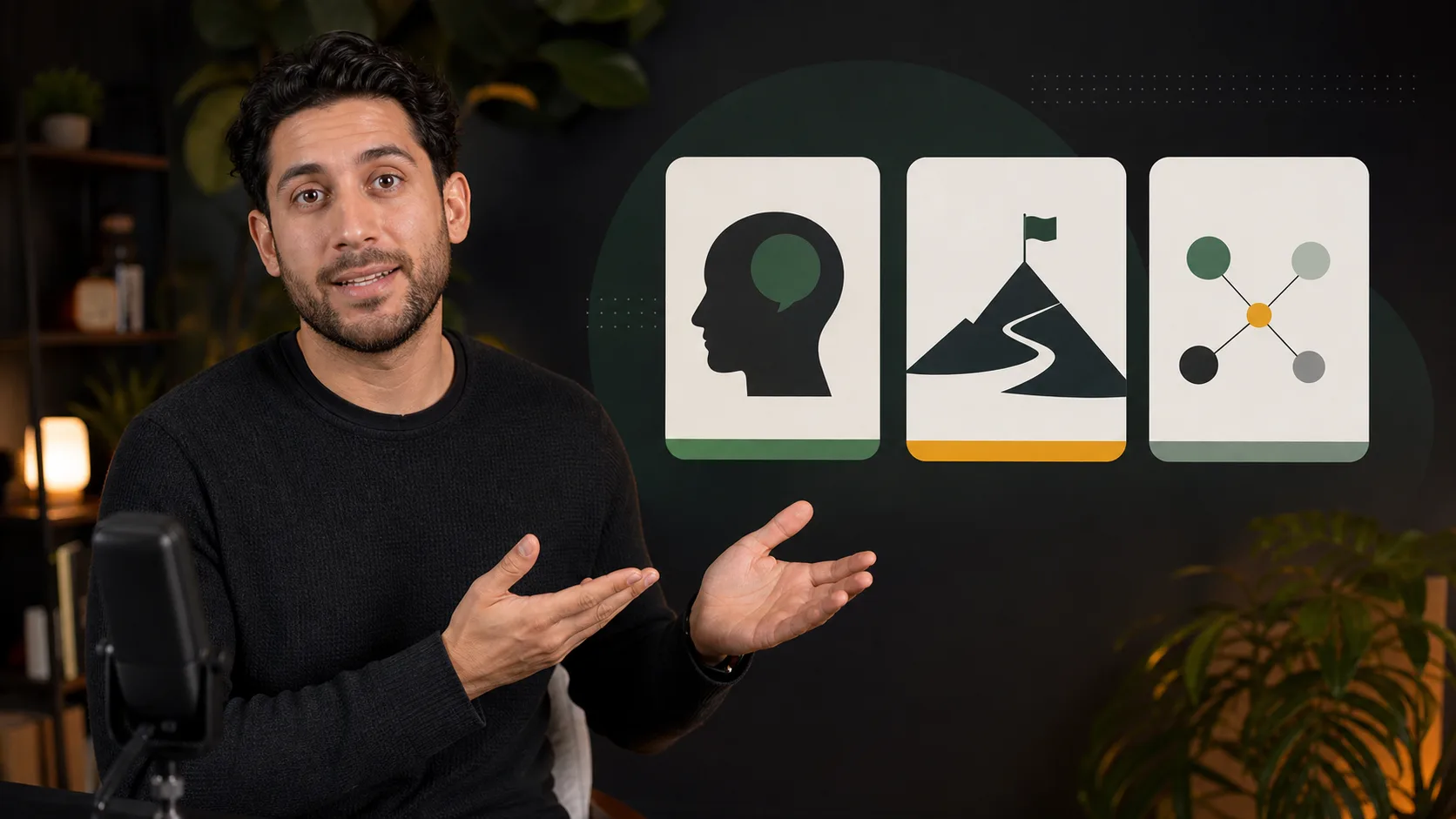
Reserve a consistent presenter zone, record clean waist-up footage, remove the room once, and alternate between presenter, slides, and demonstrations according to what helps the learner understand each moment.
Remove an instructor backgroundDecision map
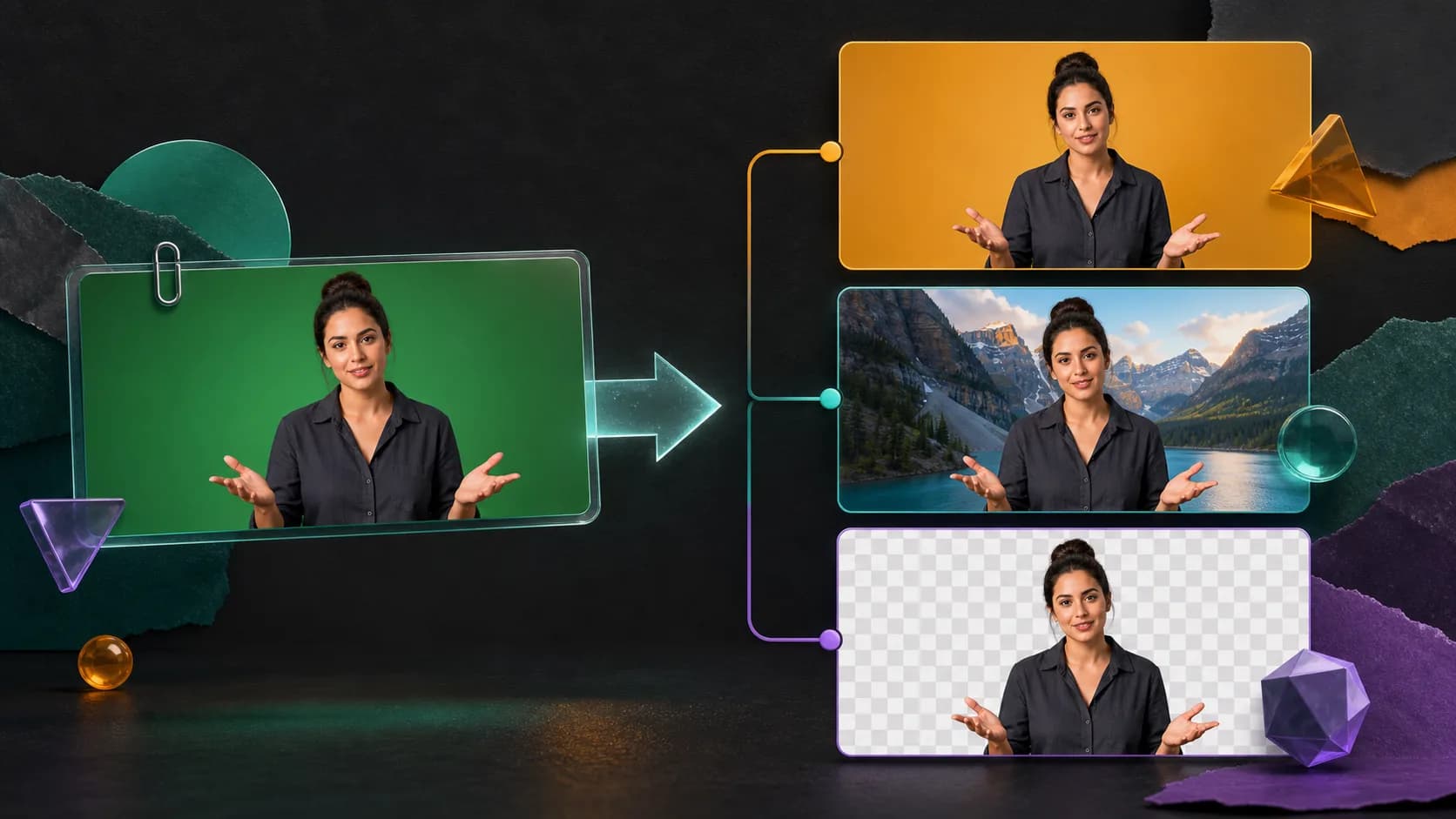
From source clip to useful output
Define the destination
Decide where “present over slides video” must work before choosing a format or background.
Protect the moving edge
Review hair, hands, motion blur, and every place the subject crosses another object.
Test the real delivery
Open the result in the actual browser, editor, presentation, or social workflow.
A floating instructor can add presence to an online lesson without requiring a studio. The technique works best when the slide deck and camera framing are planned together. If every slide is already full, adding a person will only hide the material.
Design a reusable lesson layout
- Reserve one side or lower corner for the instructor across the slide template.
- Keep important labels, equations, and demonstrations outside that zone.
- Use a few deliberate layout changes instead of moving the person every sentence.
- Make the lesson understandable when the instructor is temporarily full-screen or absent.
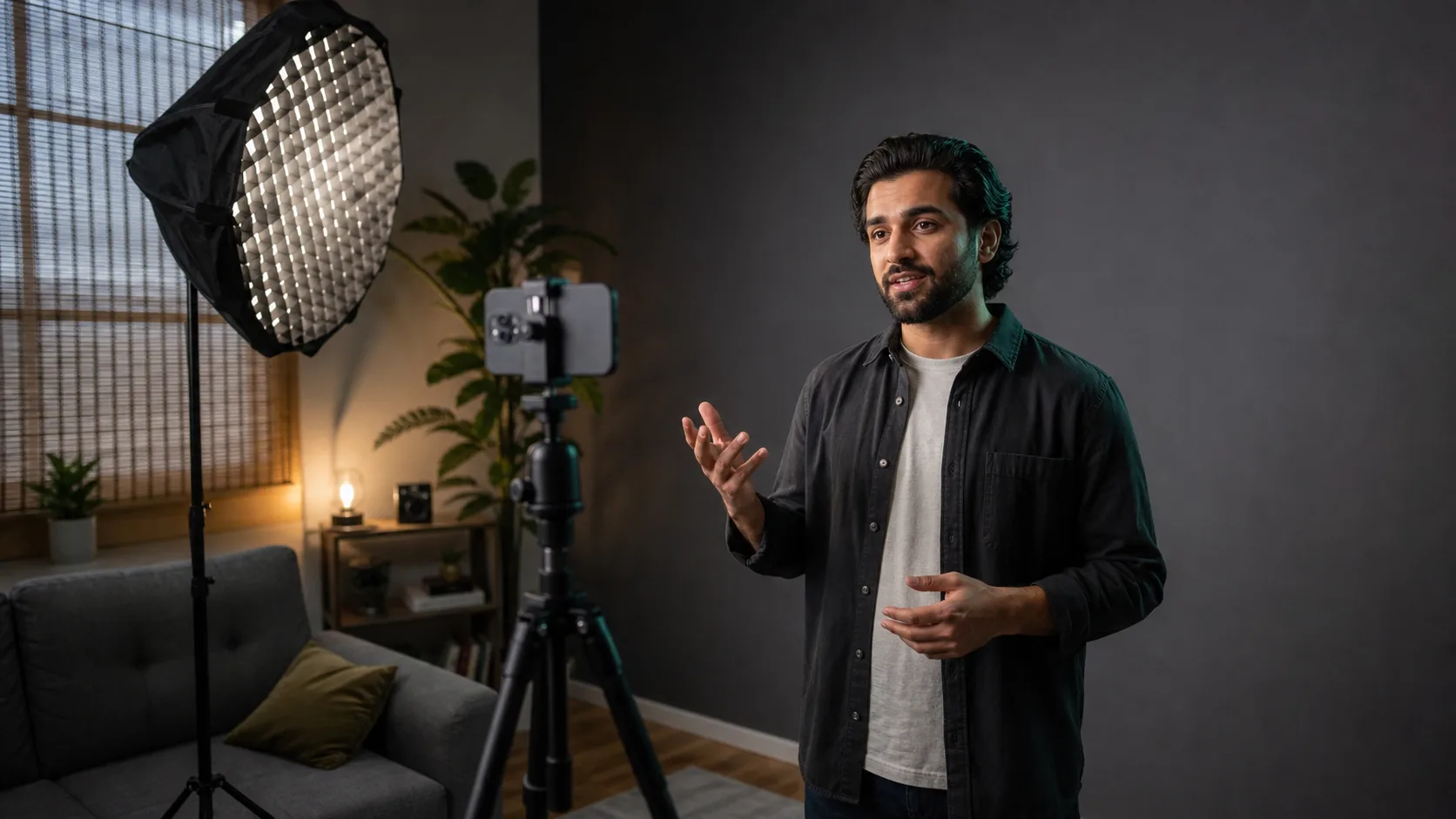
Record the instructor cleanly
- 01
Match the course framing
Record waist-up when the final presenter will occupy a compact side panel.
- 02
Leave gesture room
Mark the area where hands can move without leaving the frame or covering key slide content.
- 03
Use soft, stable light
Prevent exposure and white balance from changing between chapters.
- 04
Record clean audio
Background removal cannot rescue echo, noise, or inconsistent microphone distance.
- 05
Capture a quality sample
Process a difficult gesture and the chosen wardrobe before recording the complete module.
Choose when the instructor is visible
Show the instructor for welcome, emphasis, transitions, and personal explanation. Reduce or remove the cutout when learners need to inspect a diagram, code sample, spreadsheet, or software interface. Presence is valuable; permanent visual occupation is not.
Match the presenter to the slide
Use consistent scale and a subtle separation treatment. Match the presenter exposure to the slide theme and avoid a bright halo on dark decks. If a virtual floor or desk is implied, add a restrained contact shadow. Otherwise let the cutout remain a clearly designed overlay rather than faking a room.
Build accessibility into production
- Provide accurate captions and a transcript for spoken instruction.
- Read or describe visual information that is essential to the lesson.
- Do not rely on pointing alone; name the control, region, or concept.
- Keep text large enough after the course player adds its own controls.
Reuse the system across modules
Save the presenter position, scale, color treatment, caption style, and transition rules as a template. Keep the original cutout or matte for corrections. A consistent system reduces editing time and makes newly recorded chapters feel like part of the same course.
Sources and further reading
Frequently asked questions
Do I need a green screen to present over slides?
No. A well-lit instructor with visible separation from the room can be cut out with AI and placed over the lesson layout.
Where should the instructor appear on a slide?
Reserve a consistent zone that does not cover essential content. Change or remove the presenter when a diagram or demonstration needs the full frame.
Should course videos include captions?
Yes. Accurate captions improve accessibility and help learners in noisy, quiet, or second-language viewing situations.
Quality gate
Three surfaces reveal different edge problems
Light background
Look for dark contamination, clipped hair, and hard matte boundaries.
Dark background
Look for pale halos, spill, and semitransparent noise around motion.
Final destination
Confirm playback, dimensions, compression, and transparency where viewers will see it.
Build one reusable instructor layer
Process a short chapter sample, approve the crop and edge, then reuse the layout across the course.
Remove an instructor background