Web / transparent person on website
How to put a transparent talking person on a website
Design, encode, position, and load a transparent website presenter without hurting readability, accessibility, responsiveness, or performance.

The useful answer
Use a short cropped alpha video, build a complete static page first, reserve layout space, provide controls and captions when speech matters, and use a poster or opaque fallback where alpha is not reliable.
Create a transparent presenterDecision map
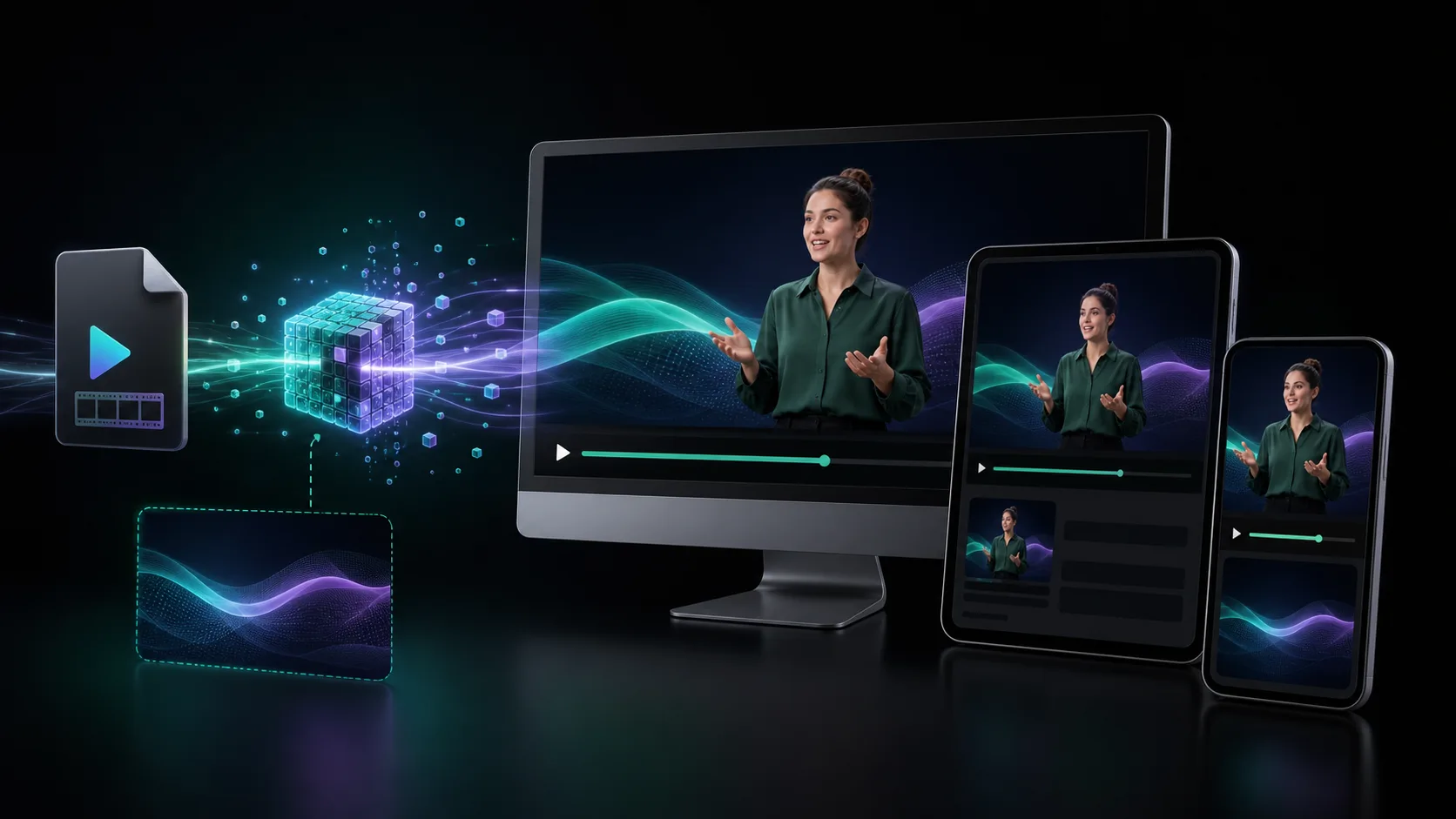
From source clip to useful output
Define the destination
Decide where “transparent person on website” must work before choosing a format or background.
Protect the moving edge
Review hair, hands, motion blur, and every place the subject crosses another object.
Test the real delivery
Open the result in the actual browser, editor, presentation, or social workflow.
A transparent presenter can point at a feature, introduce a lesson, or make a product walkthrough feel human. It can also obscure content, consume bandwidth, and become impossible to dismiss. Treat the presenter as a progressive enhancement rather than the page itself.
Choose one job for the presenter
- Explain the first action in a complex tool.
- Introduce a course or onboarding sequence.
- Call attention to one product capability.
- Guide a visitor through a short, optional demonstration.
Record and crop for the final placement
Decide whether the presenter is full-body, waist-up, or a small circular guide before recording. Leave gesture room on the side facing the interface. Crop empty transparent pixels during editing, because the browser still decodes the full video frame even when most of it is invisible.
Build the static experience first
- 01
Design without video
The page must communicate its value and remain usable when the presenter never loads.
- 02
Reserve the stage
Give the media wrapper a fixed aspect ratio so layout does not jump.
- 03
Add the transparent layer
Use a tested WebM source and contain the full subject unless deliberate cropping is safe.
- 04
Provide an exit
Let visitors pause, mute, replay, or dismiss meaningful speech.
- 05
Test fallbacks
Use a poster, static cutout, or opaque render when alpha playback is unavailable.
Keep mobile intentionally different
A presenter that occupies one quarter of a desktop can cover the whole phone. Use a smaller crop, move it below the key copy, replace it with a poster, or disable the enhancement. Verify that zoom, orientation changes, and browser controls do not trap the close or pause control.
Make speech accessible
Essential speech needs captions and visible playback controls. Decorative motion should be hidden from assistive technology and should not carry unique information. Respect reduced-motion preferences by showing a useful static state instead of autoplaying the clip.
Performance checklist
- Trim dead air and use the shortest useful loop or explanation.
- Encode close to the largest rendered dimensions rather than keeping a 4K canvas.
- Use preload=metadata or defer the source when the presenter appears below the fold.
- Avoid several simultaneous alpha videos on one screen.
- Measure on a mid-range phone and slower connection.
Sources and further reading
Frequently asked questions
What format should a transparent website presenter use?
VP9 WebM with alpha is a practical option for tested browsers. Keep a poster or opaque fallback because alpha behavior is not identical across every browser and device.
Should a website presenter autoplay?
Only muted video can generally autoplay reliably, and visitors should still be able to pause or dismiss meaningful motion. Speech should require an intentional action or provide clear controls and captions.
Will a transparent video slow down my website?
It can. Crop transparent space, encode for the displayed size, keep duration short, defer below-fold media, and avoid multiple simultaneous videos.
Quality gate
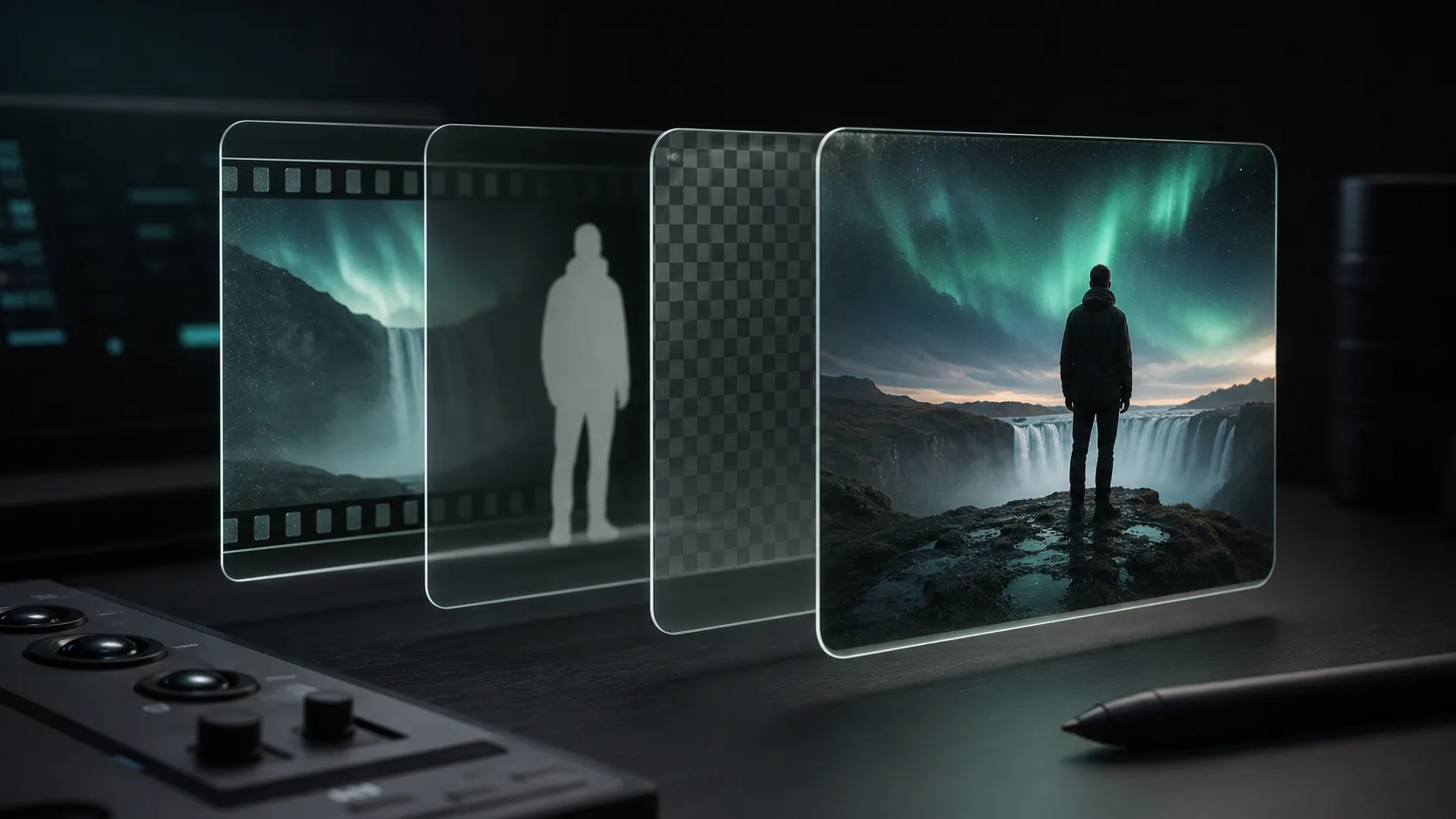
Three surfaces reveal different edge problems
Light background
Look for dark contamination, clipped hair, and hard matte boundaries.
Dark background
Look for pale halos, spill, and semitransparent noise around motion.
Final destination
Confirm playback, dimensions, compression, and transparency where viewers will see it.
Make the presenter before building around it
Create a short transparent sample at the final crop and test it on the actual page before producing the full script.
Create a transparent presenter