Workflow / put yourself over a screen recording
How to put yourself over a screen recording without a webcam bubble
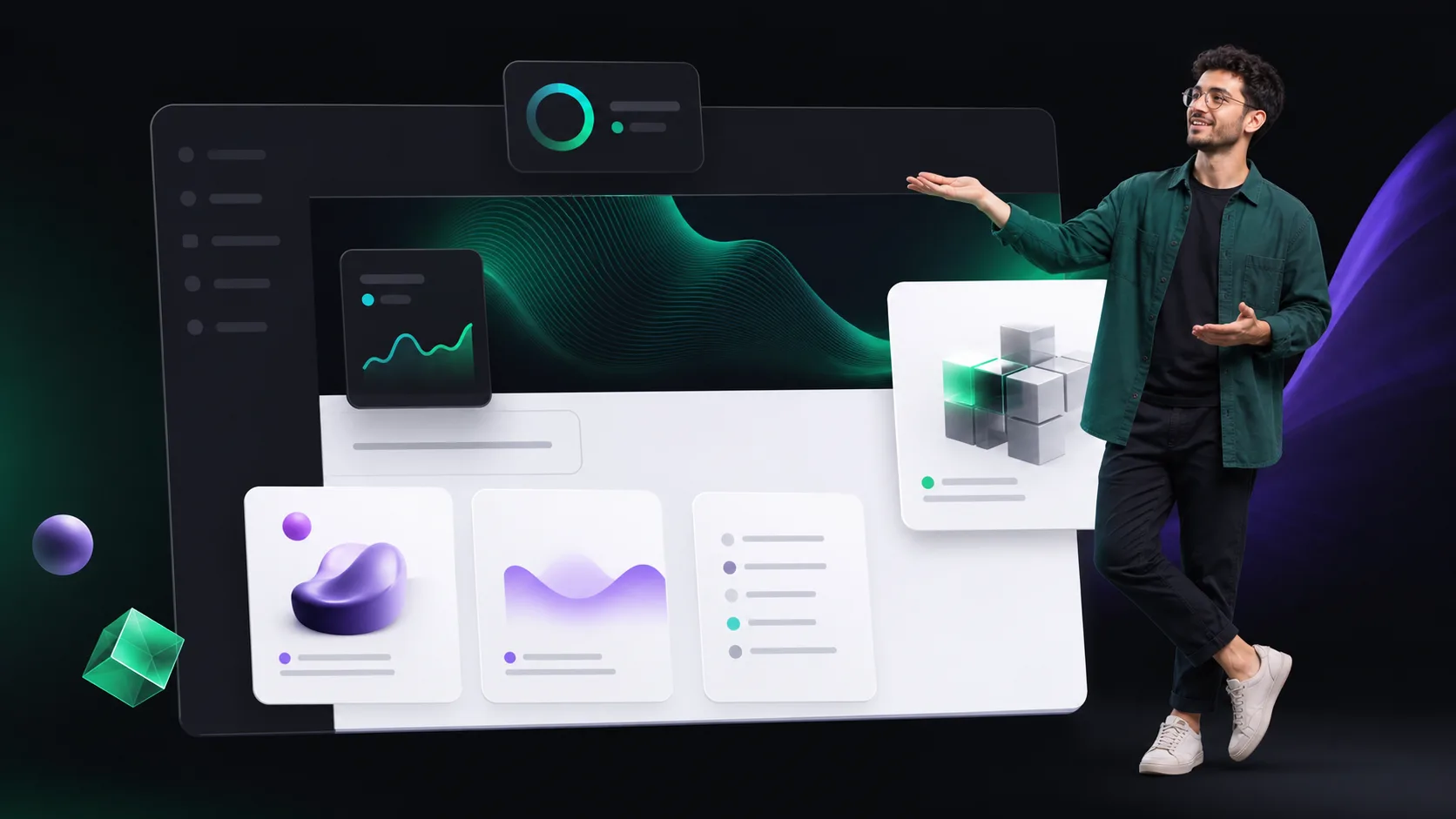
Create a borderless presenter overlay for software demos, tutorials, and sales videos by combining a screen recording with a transparent person layer.
The useful answer
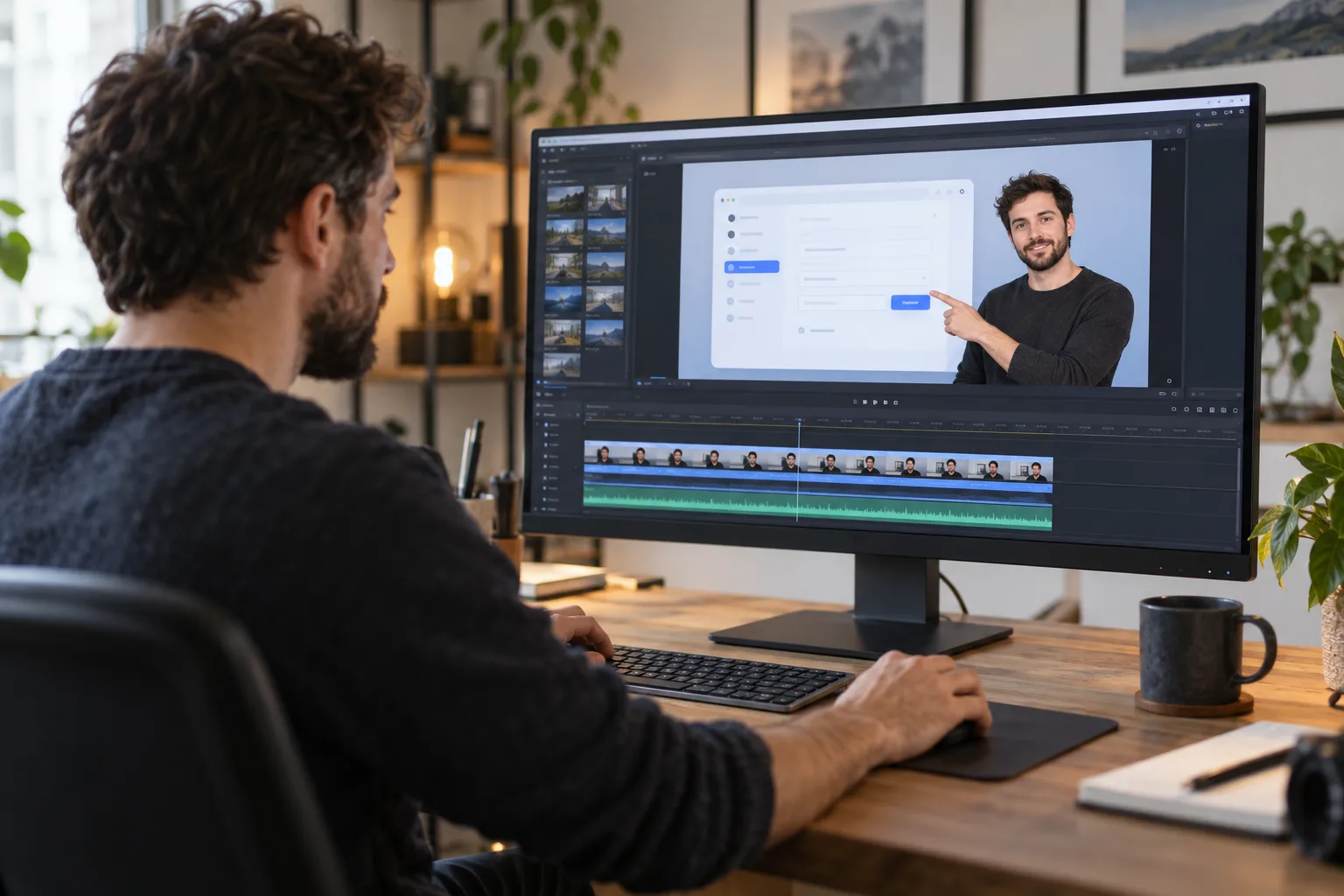
Record the screen and presenter as separate sources, turn the presenter into a transparent layer, and design placements around the interface. Use full-screen presenter, screen-only, and overlay moments instead of covering the product for the entire video.
Create a presenter overlayDecision map
From source clip to useful output
Define the destination
Decide where “put yourself over a screen recording” must work before choosing a format or background.
Protect the moving edge
Review hair, hands, motion blur, and every place the subject crosses another object.
Test the real delivery
Open the result in the actual browser, editor, presentation, or social workflow.
A webcam bubble proves that a person is present, but it also consumes the same corner for the entire recording. A borderless presenter overlay gives you more control: the speaker can appear beside a feature, point toward a control, move between safe areas, or disappear when the interface needs the full frame.
The technique is simple compositing. The software demo sits on the bottom track. A video of the presenter, with its original room removed, sits above it. Because the upper layer has transparency, the screen recording remains visible around the person's actual outline instead of inside a rectangle or circle.
Record separate, synchronized sources
- 01
Prepare the product state
Close private tabs and notifications, seed realistic demo data, increase interface text if needed, and choose a stable browser or app window size.
- 02
Record the screen cleanly
Capture the target window at a consistent resolution and keep cursor movement deliberate. Avoid resizing the app halfway through the explanation.
- 03
Record the presenter at useful quality
Use soft front light, a steady camera, and enough framing for gestures. Keep hands inside the frame if they will point toward the interface.
- 04
Create a sync reference
A clap, countdown, or spoken marker makes separate camera, screen, and microphone tracks quick to align.
- 05
Preserve both originals
Do not bake the webcam over the screen if you want to reposition or remove the presenter later.
Create the transparent presenter
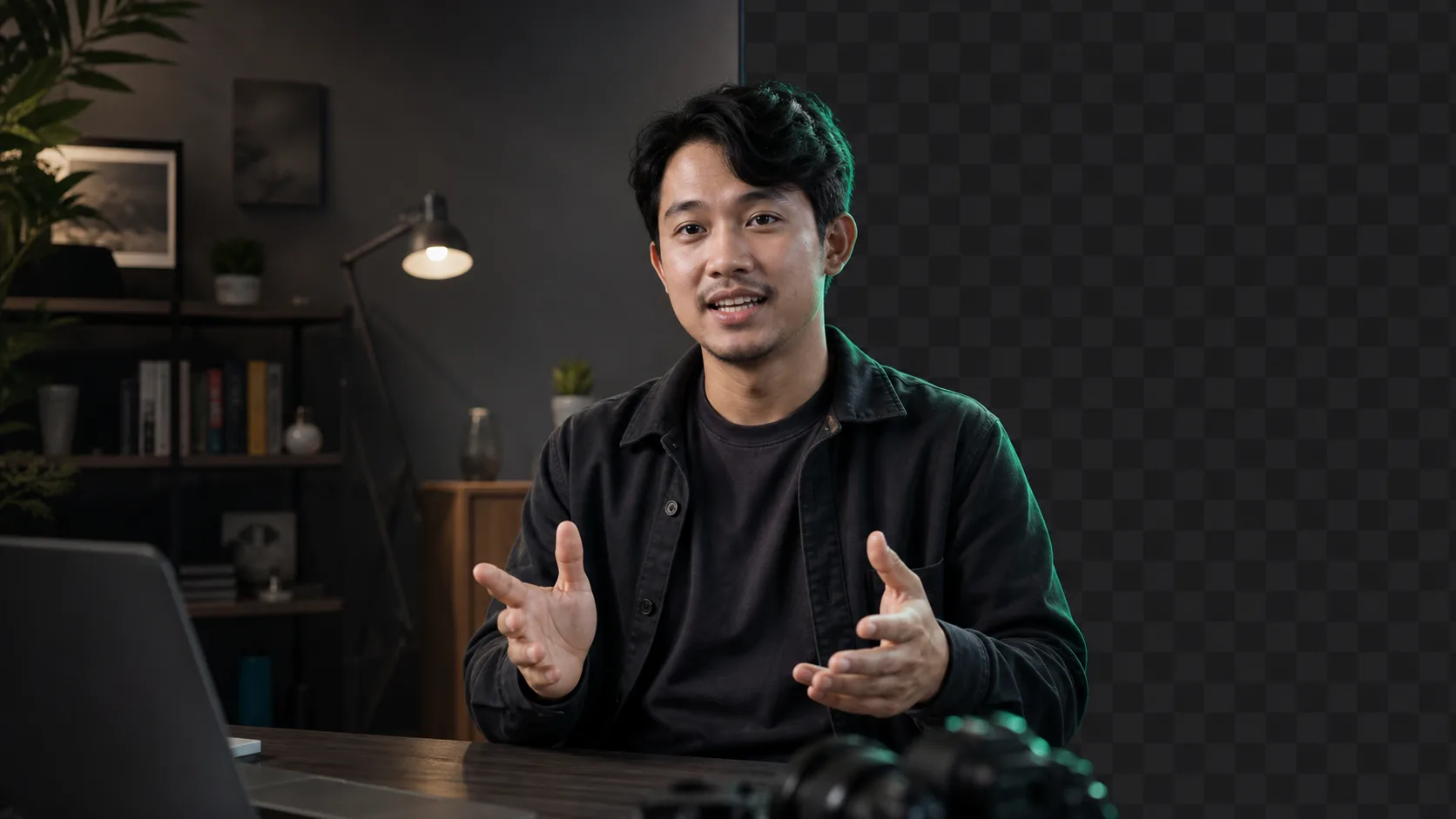
Remove the room from the presenter footage and export a transparent video or alpha matte. Use a transparent master when the editor can read it directly. Use a separate matte when you want finer control over hair, hands, edge softness, and repairs. Check the cutout over both light and dark interface screens because a halo may disappear over one and become obvious over the other.
Design around the interface, not the empty corner
- Map the places where menus, alerts, save buttons, tooltips, and validation messages appear.
- Move the presenter only at meaningful section changes; constant floating motion competes with the demonstration.
- Keep pointing gestures spatially honest. Mirror the presenter only if the hand direction and any visible text still make sense.
- Use a subtle shadow or restrained contrast treatment when the cutout blends into a similar interface colour.
- Leave room for captions without stacking text across the presenter's mouth or the product's primary action.
Use three layouts instead of one
- 01
Full presenter
Open and close with the person large enough for expression, credibility, and a clear call to action.
- 02
Presenter plus product
Place the cutout beside the active feature when commentary, emotion, or a gesture adds meaning.
- 03
Screen only
Give detailed setup, code, forms, and small controls the full canvas while the same narration continues.
Keep attention on the action
A presenter overlay cannot rescue an unfocused walkthrough. Script around outcomes rather than every click. Zoom only when the viewer needs detail, pause the cursor before clicking, and remove loading time or repeated navigation. When the speaker points at something, reveal or highlight it at the same moment. The person and cursor should never give two competing instructions.
Adapt the composition for vertical video
A desktop interface cannot usually be shrunk into the middle of a phone screen and remain readable. Rebuild the vertical version around one product region at a time. Place the presenter above or below the relevant crop, enlarge the active control, and rewrite captions for the narrower canvas. Keep the landscape master so the demo can still serve a help centre, sales email, or onboarding flow.
Final review checklist
- No private customer data, browser bookmarks, notifications, tokens, or internal URLs are visible.
- The presenter never covers the control being discussed or the result of an action.
- Hair and gestures remain stable over both bright and dark parts of the interface.
- Voice, cursor, gesture, and interface response remain synchronized after edits.
- The product is understandable when the presenter layer is hidden and when captions are enabled.
Sources and further reading
Frequently asked questions
How do I put myself over a screen recording?
Record the screen and camera as separate sources, remove the camera background to create a transparent presenter, then place that presenter layer above the screen recording in an editor.
Is a transparent presenter better than a webcam bubble?
It offers more layout freedom and can feel integrated with the demo, but it requires a clean cutout. A simple bubble remains useful when speed matters or the source edge is unreliable.
Should I record the webcam and screen at the same time?
You can, but preserve them as separate files or timeline items. Separate sources let you resize, move, hide, repair, or replace the presenter without covering the screen recording permanently.
Quality gate
Three surfaces reveal different edge problems
Light background
Look for dark contamination, clipped hair, and hard matte boundaries.
Dark background
Look for pale halos, spill, and semitransparent noise around motion.
Final destination
Confirm playback, dimensions, compression, and transparency where viewers will see it.
Turn your camera recording into a movable presenter
Remove the room once, then place the speaker wherever each screen-recording section has space.
Create a presenter overlay