Creators / remove video background for reels
How to remove a video background for Reels, Shorts, and TikTok
Create clean vertical cutouts for short-form video, compose them over b-roll or branded scenes, and export a platform-ready file.
The useful answer
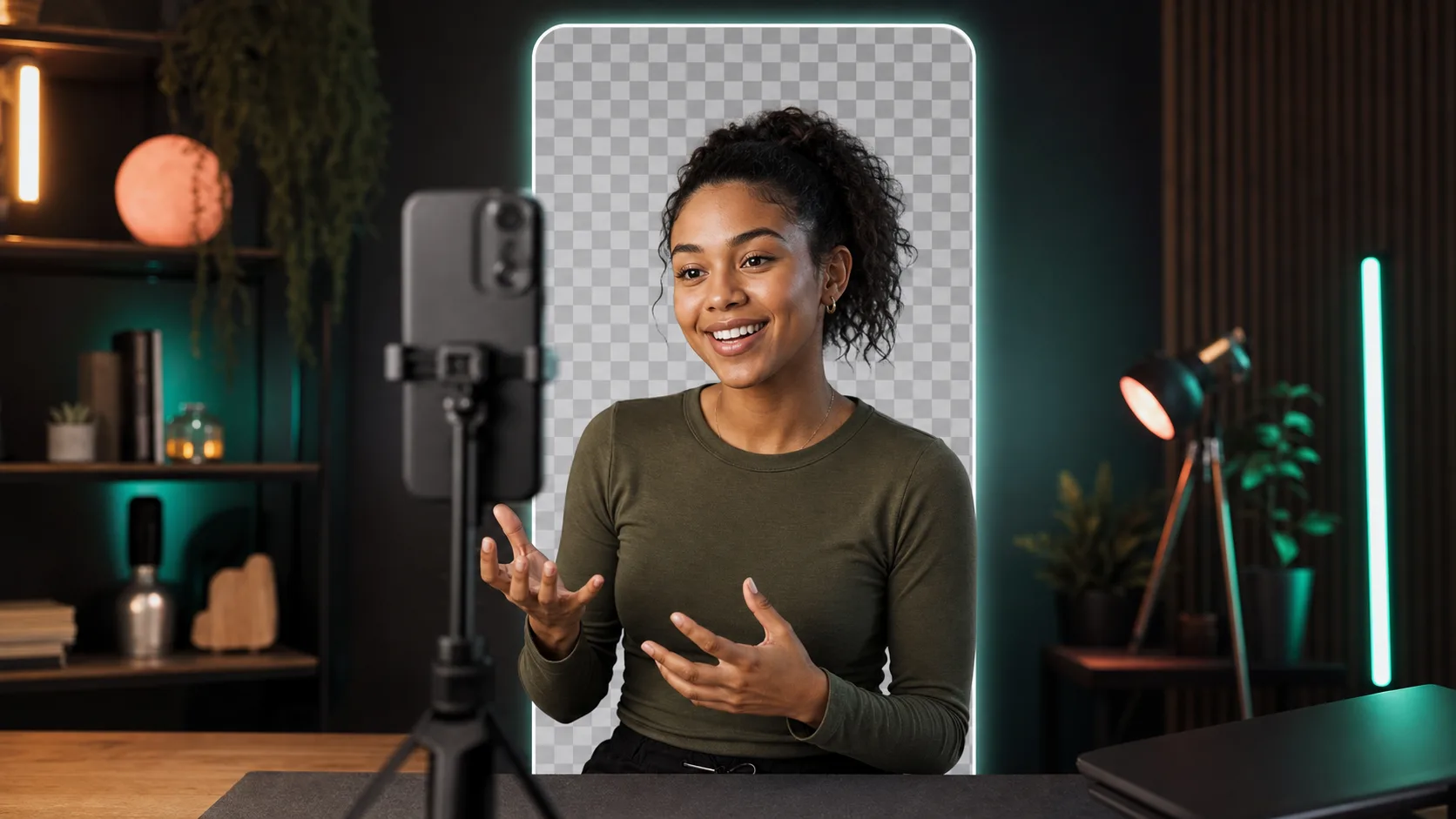
Remove the background from the cleanest source, compose the result on a 9:16 canvas, keep captions and hands inside safe areas, and render the final scene into a normal platform-ready video.
Remove a vertical backgroundDecision map
From source clip to useful output
Define the destination
Decide where “remove video background for reels” must work before choosing a format or background.
Protect the moving edge
Review hair, hands, motion blur, and every place the subject crosses another object.
Test the real delivery
Open the result in the actual browser, editor, presentation, or social workflow.
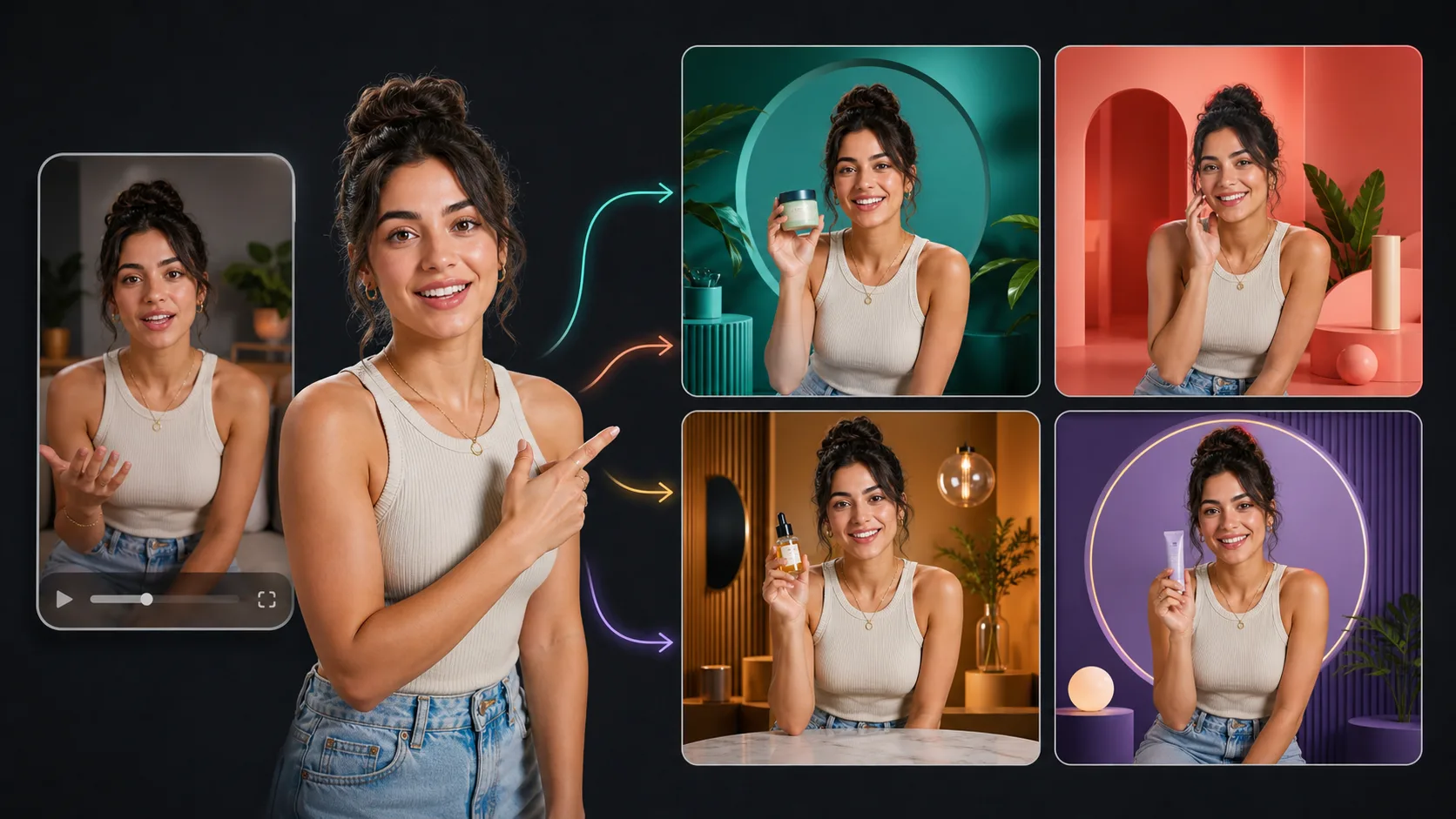
Short-form platforms reward speed, but a reusable cutout can make speed easier instead of making every post look identical. Record one clear vertical take, remove the room, and place the speaker over product footage, screenshots, captions, or a simple brand field.
Record for a 9:16 composition
- Record at the highest practical quality and avoid forwarding the clip through a messaging app before processing.
- Leave space above the head and around moving hands so the cutout can be repositioned.
- Use even light and separate clothing from the room with visible color or brightness contrast.
- Keep important gestures away from the extreme lower and right edges where platform controls often sit.
Remove once, compose many times
- 01
Process the clean master
Use the original vertical file and select transparent output or an alpha matte.
- 02
Create a 9:16 project
Use a 1080 by 1920 composition or the current platform specification in your editor.
- 03
Add the destination background
Place b-roll, a screen recording, color field, or product scene below the cutout.
- 04
Design captions around the body
Move the presenter rather than covering the face, mouth, or demonstration with text.
- 05
Render the final MP4
Bake the background and captions into a widely playable delivery file.
Use the cutout as part of the layout
A centered full-screen presenter is not the only option. Scale the cutout to one side while showing a product demo, crop to a circular reaction window, or move the speaker between sections. Preserve natural scale: a tiny full-body person at the bottom of a phone screen often looks accidental unless the layout is deliberately graphic.
Protect captions and interface safe areas
Platform buttons, usernames, captions, and device notches can cover important content. Preview the final upload inside the platform before publishing. Keep faces and key demonstrations away from crowded edges, and provide burned-in captions or a caption file because many viewers begin with sound off.
Keep the composite believable
- Match the cutout brightness and color temperature to the new background.
- Add only a subtle contact shadow or glow when the design needs separation.
- Do not sharpen the cutout edge until hair looks like a sticker.
- Check motion at normal speed; a perfect paused frame can still flicker badly.
Sources and further reading
Frequently asked questions
Should I upload transparent video directly to TikTok or Instagram?
No. Compose the new background in an editor and export a standard video file because social platforms do not provide a general transparent-video publishing workflow.
What aspect ratio should I use?
A 9:16 vertical canvas is the common starting point for Reels, Shorts, and TikTok, but confirm the current platform specification before final export.
Can I reuse the same cutout on several posts?
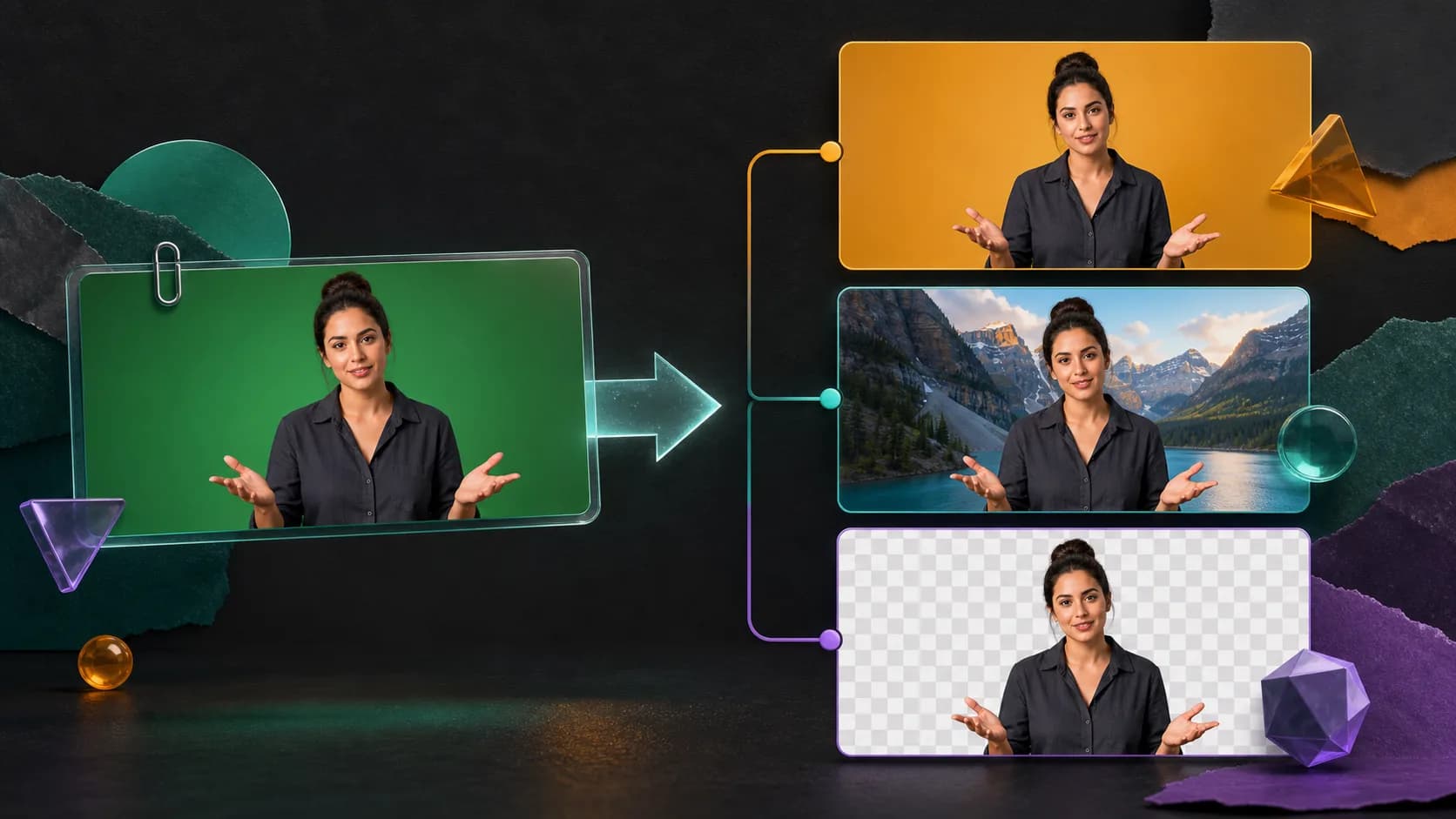
Yes. Keep a clean transparent master or matte, then create separate compositions with different b-roll, crops, captions, and calls to action.
Quality gate
Three surfaces reveal different edge problems
Light background
Look for dark contamination, clipped hair, and hard matte boundaries.
Dark background
Look for pale halos, spill, and semitransparent noise around motion.
Final destination
Confirm playback, dimensions, compression, and transparency where viewers will see it.
Turn one vertical take into a reusable cutout
Process the original clip once, then build multiple platform-ready compositions around the subject.
Remove a vertical background