Troubleshooting / transparent video black background
Why does my transparent video have a black background? 7 fixes
Diagnose black backgrounds in transparent video by checking the codec, alpha channel, player, editor interpretation, and export settings.
The useful answer
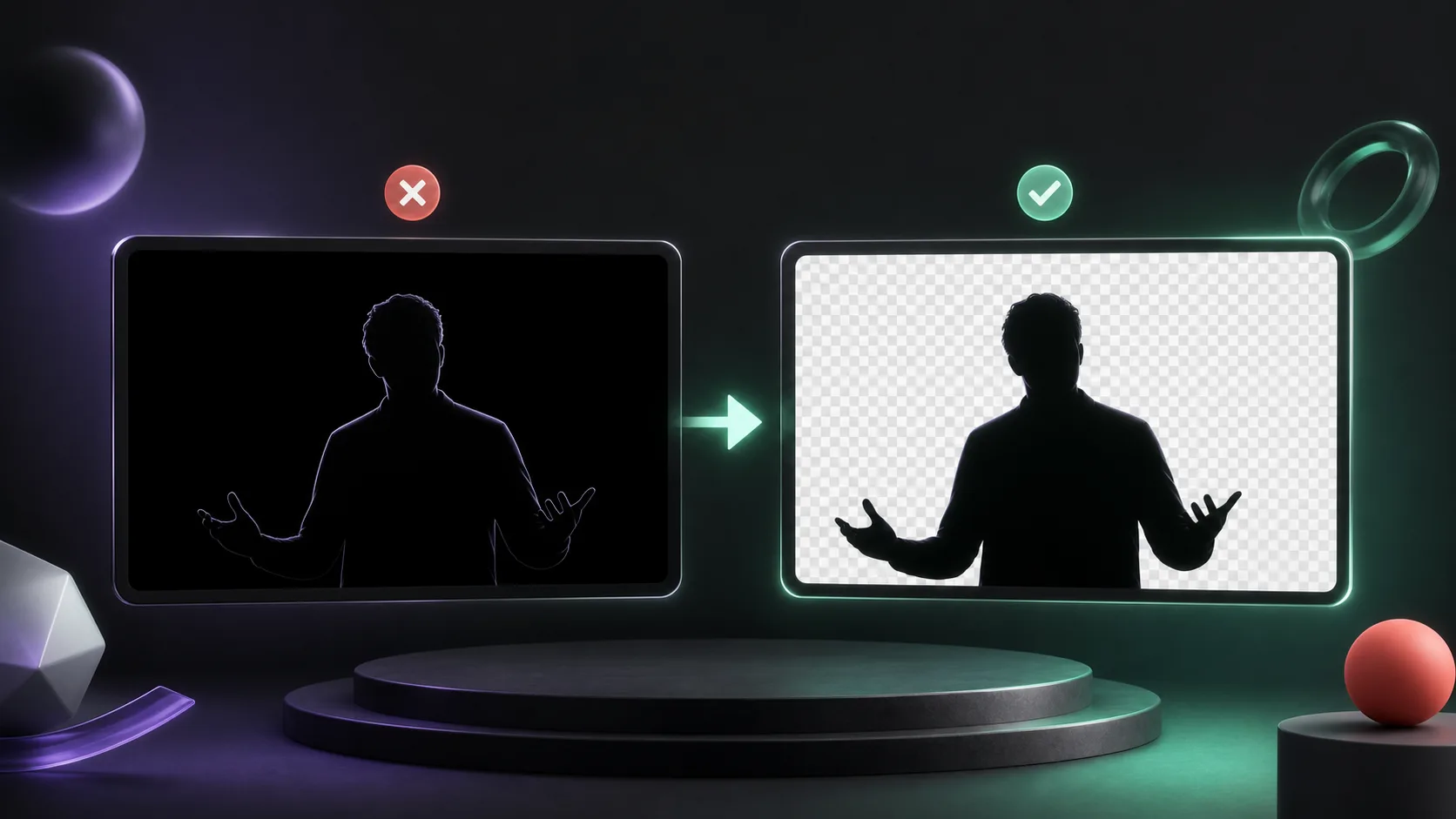
A black rectangle usually means the file has no alpha channel, the chosen codec discarded it, or the destination cannot render it. Confirm alpha at every step instead of changing random export settings.
Try transparent outputDecision map
From source clip to useful output
Define the destination
Decide where “transparent video black background” must work before choosing a format or background.
Protect the moving edge
Review hair, hands, motion blur, and every place the subject crosses another object.
Test the real delivery
Open the result in the actual browser, editor, presentation, or social workflow.
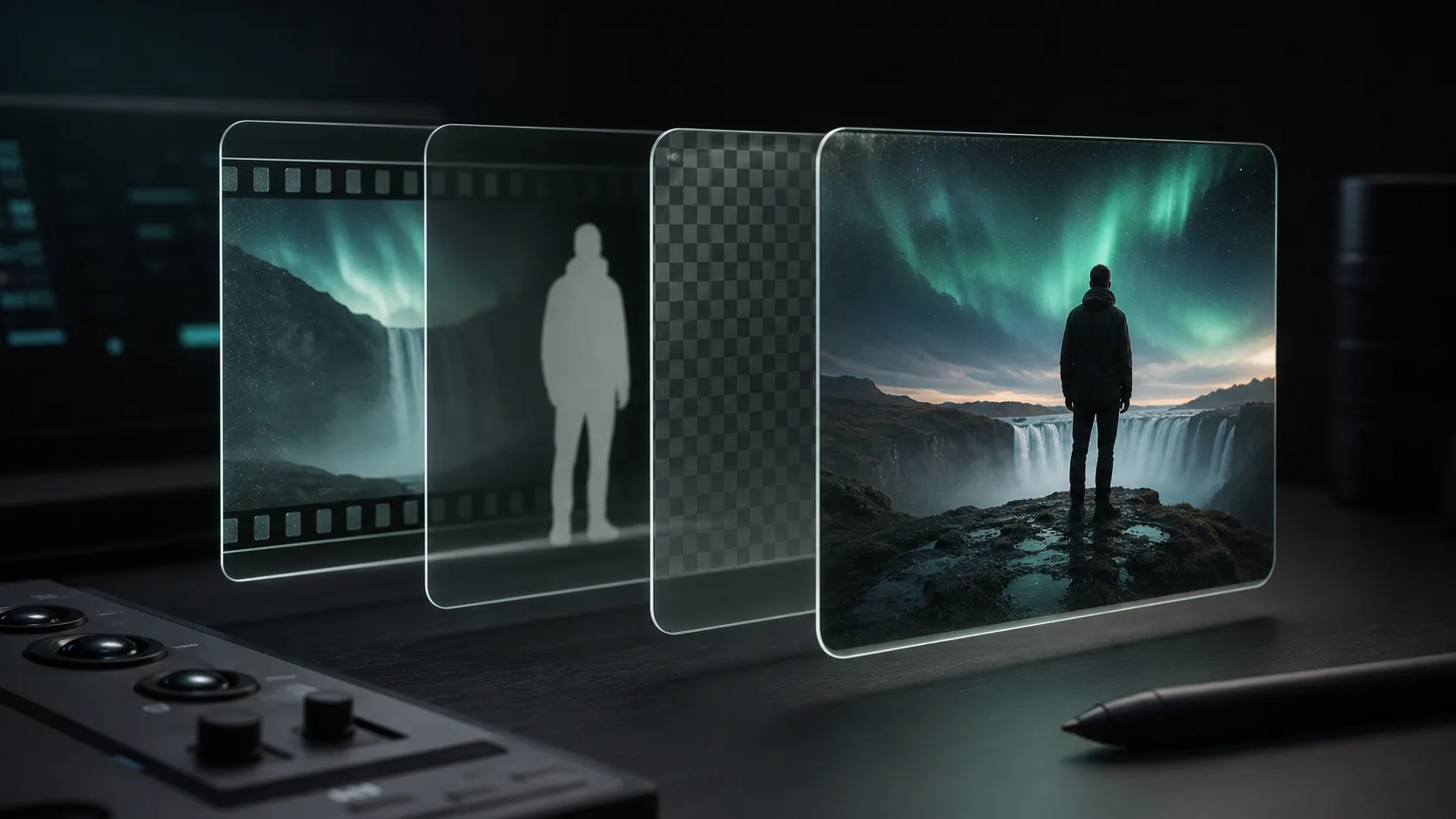
Transparency is not a visual effect stored by the checkerboard you see in an editor. It is extra per-pixel data. The container, codec, export preset, player, and final platform must all preserve and interpret that data. If one step drops alpha, the empty pixels are commonly displayed as black.
1. Confirm that the file actually contains alpha
Place the exported file over a bright color inside an editor that supports alpha. If the entire frame remains black, inspect the file properties or codec metadata. Do not rely on the filename: a .mov or .webm container can hold several codecs, and not every codec profile inside those containers supports transparency.
2. Stop exporting transparent MP4
The common H.264 video used inside MP4 does not provide the alpha workflow most people expect. If the background is already approved, render it into a normal MP4. If the destination needs live transparency, choose a tested alpha-capable format such as VP9 WebM for compatible browsers, an editing intermediate with alpha, or a separate grayscale matte.
3. Check the alpha interpretation in your editor
- Try straight and premultiplied alpha interpretation if the editor exposes that choice.
- Place the clip above a visible background layer rather than judging it over the editor canvas.
- Verify that the alpha channel is enabled on the clip and track.
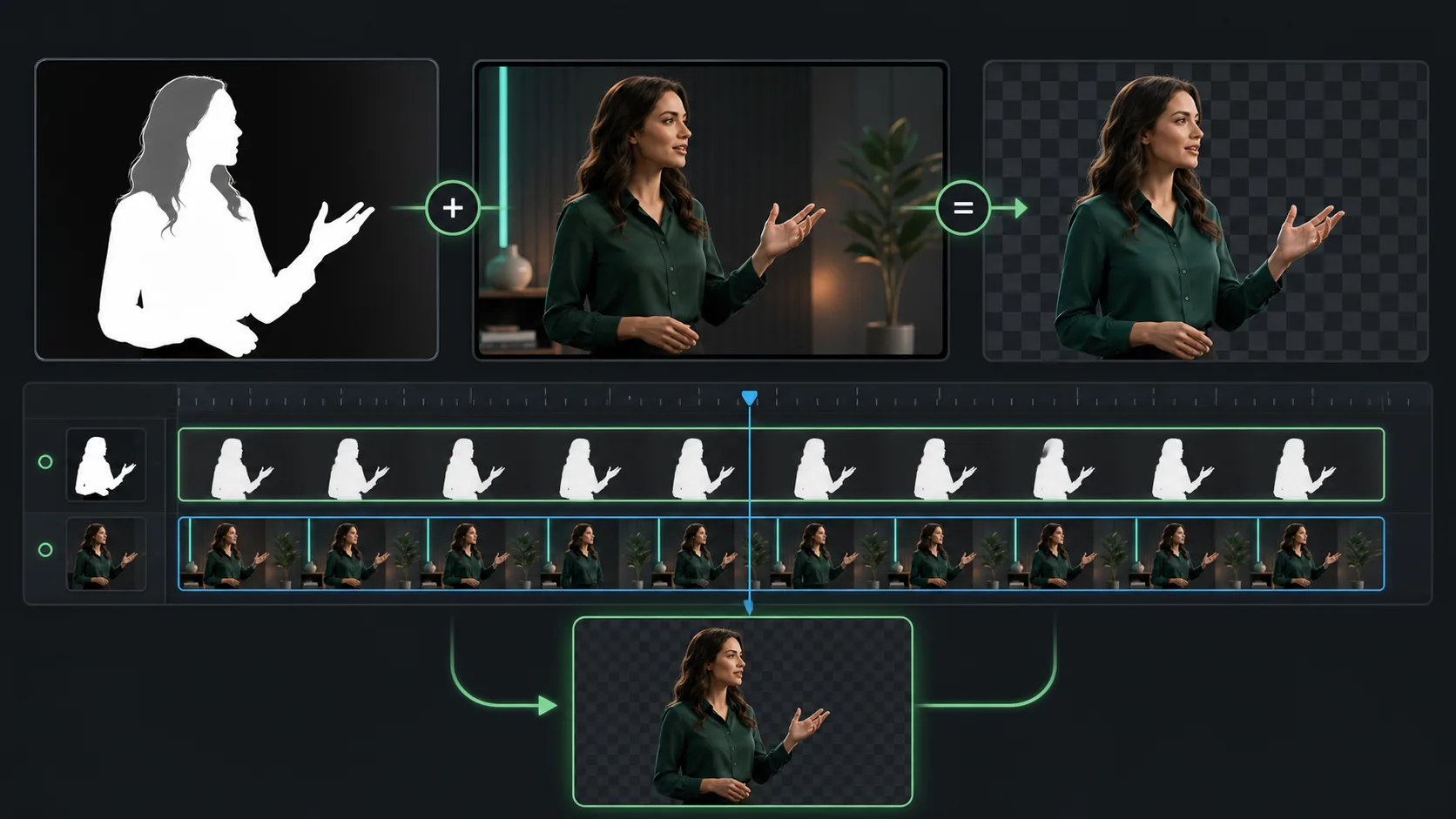
- If you received a matte separately, use it as a track matte instead of expecting the color clip to be transparent by itself.
4. Test the destination, not only the source file
A file can contain valid alpha and still appear opaque in a player that ignores it. Browser compatibility, presentation software, social platforms, and messaging apps all behave differently. Social feeds usually expect the background to be rendered into the final video. A web overlay needs browser-specific testing and a static or opaque fallback.
5. Look for a black preview, not a black export
Some media players display transparent areas over black because the player has no page or canvas behind the clip. Import the file into a compositor and place it over red, white, and blue. If those colors show through, the transparency is intact and only the standalone preview is misleading.
6. Fix black or dark edge contamination
If the center is transparent but a dark fringe remains around hair or shoulders, the problem is usually premultiplication or color contamination, not missing alpha. Test the cutout on both light and dark backgrounds, then use the editor's matte cleanup or remove-color-matting controls. Avoid crushing the edge into a hard outline; fine hair needs partial transparency.
7. Re-export from a known-good master
- 01
Return to the first alpha-capable result
Avoid transcoding a file that already lost transparency.
- 02
Choose the destination first
Use WebM for a tested web overlay, an alpha intermediate or matte for editing, and MP4 for a finished composition.
- 03
Run a five-second proof
Check hair, hands, and motion over several background colors before exporting the full clip.
Sources and further reading
Frequently asked questions
Why does transparent video look black in VLC or QuickTime?
A standalone player may composite transparent pixels over black, or it may not support the file's alpha implementation. Test the clip over a colored layer in an editor before deciding the alpha is missing.
Can an MP4 video have a transparent background?
The common MP4 and H.264 delivery workflow does not preserve an alpha channel. Render the final background into MP4, or use an alpha-capable format or separate matte for compatible destinations.
Why is there a black outline around my cutout?
A dark outline usually comes from premultiplied color or edge contamination. Interpret the alpha correctly and use matte cleanup while checking the result on both light and dark backgrounds.
Quality gate
Three surfaces reveal different edge problems
Light background
Look for dark contamination, clipped hair, and hard matte boundaries.
Dark background
Look for pale halos, spill, and semitransparent noise around motion.
Final destination
Confirm playback, dimensions, compression, and transparency where viewers will see it.
Export a known-good transparent result
Process a representative clip in Backdrop and test the WebM or alpha matte before rebuilding your entire workflow.
Try transparent output