Creators / video podcast background removal
How to clean up a video podcast background without a green screen
A practical video-podcast workflow for removing distracting rooms, preserving microphones and gestures, building a consistent set, and creating vertical clips.
The useful answer
For a video podcast, protect audio first and decide whether microphones, chairs, and co-hosts must remain. Process a short interaction test before the full episode, then build one consistent background system for long-form video and vertical clips.
Create a podcast cutoutDecision map
From source clip to useful output
Define the destination
Decide where “video podcast background removal” must work before choosing a format or background.
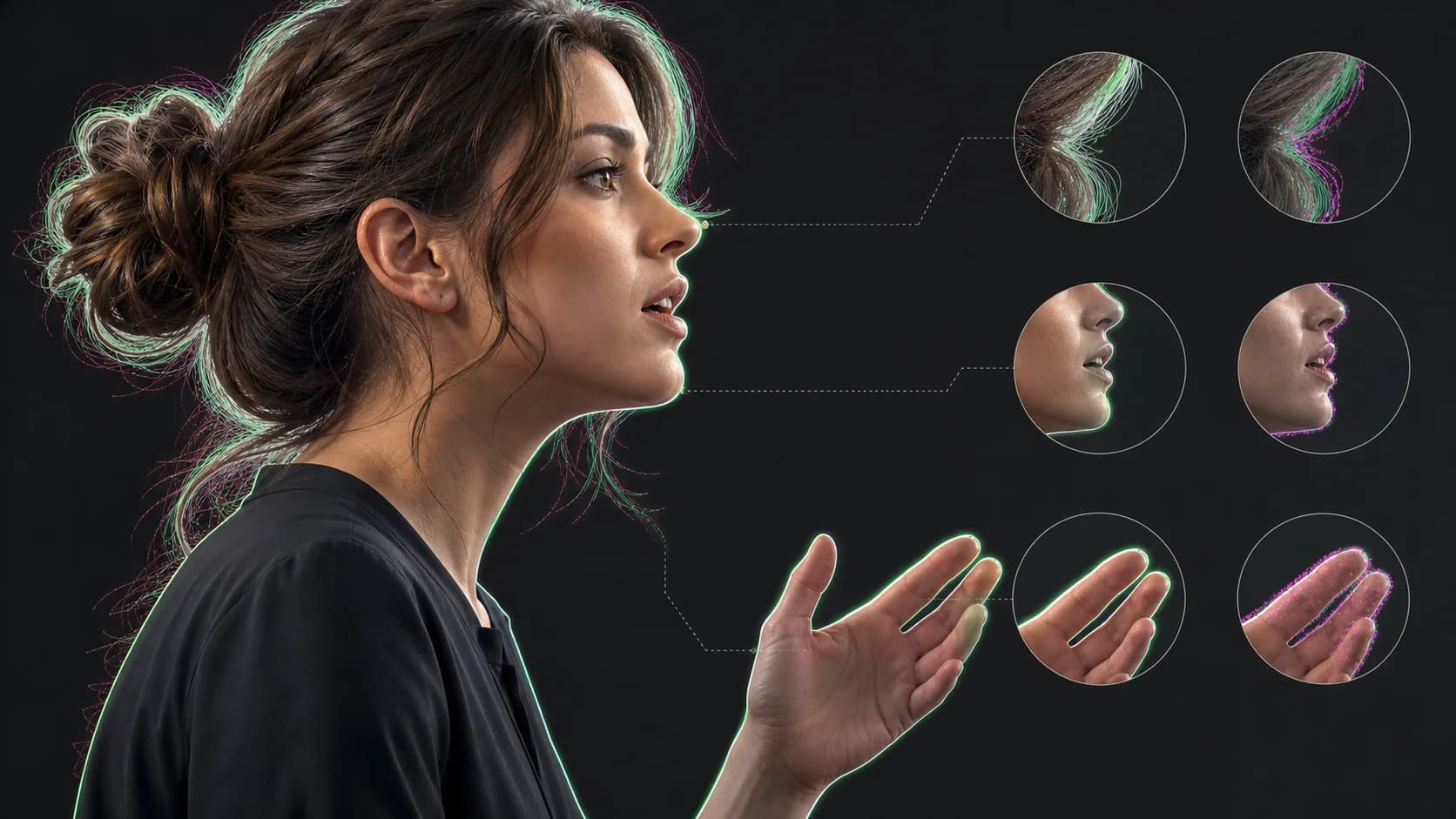
Protect the moving edge
Review hair, hands, motion blur, and every place the subject crosses another object.
Test the real delivery
Open the result in the actual browser, editor, presentation, or social workflow.
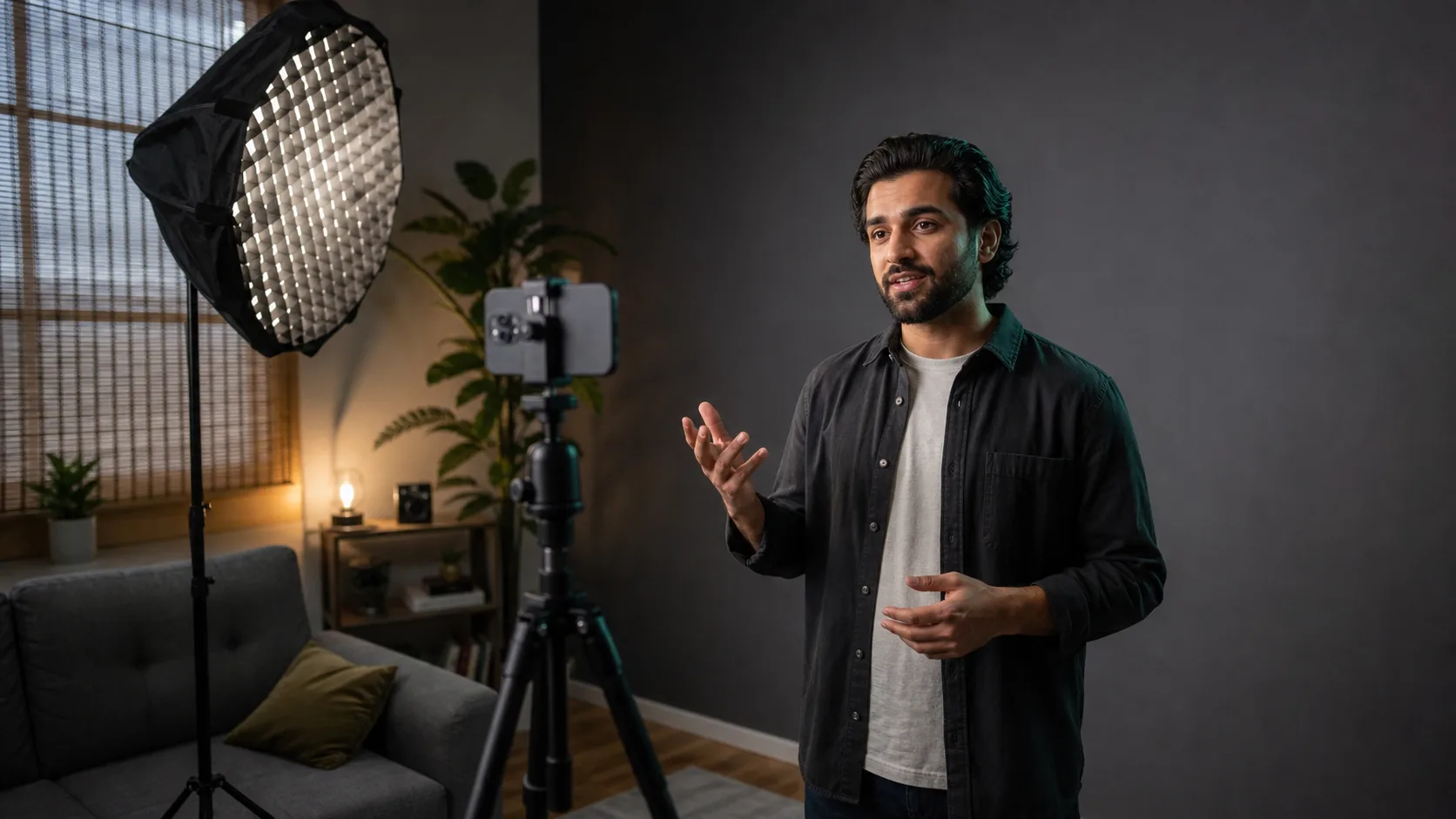
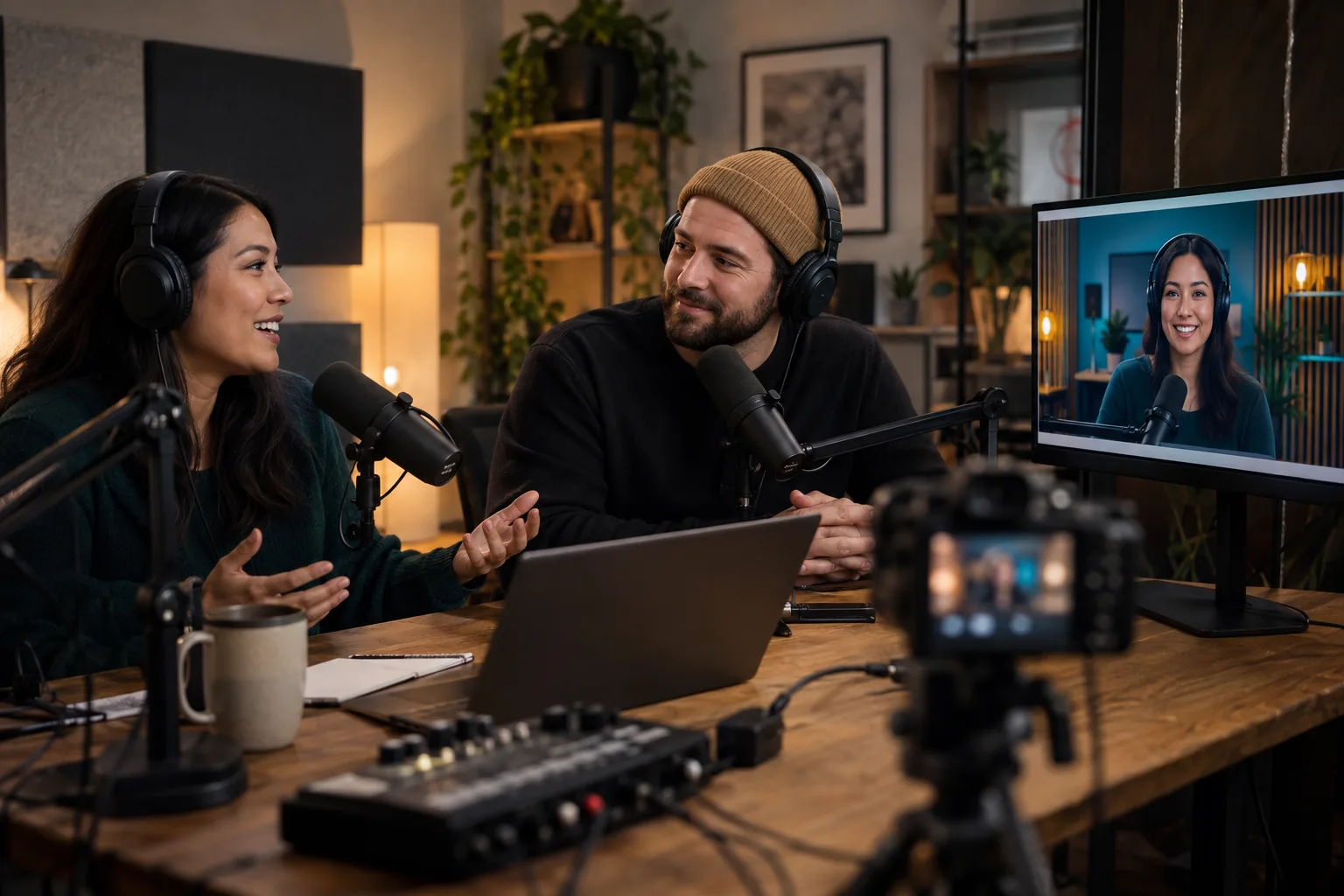
A video podcast can sound excellent and still look improvised: a bright doorway behind one host, a cable crossing the frame, mismatched rooms, or a shelf that changes between episodes. Background removal can create consistency without renting a permanent studio, but a podcast is more complicated than a single talking head because microphones, chairs, tables, and multiple people may all cross the foreground.
The goal is not to make every episode look synthetic. It is to remove visual noise while preserving the physical cues that make a conversation feel real. Decide what the audience should believe about the space before choosing a background or processing an hour of footage.
Decide what must survive the cutout
- The host's face, hair, shoulders, hands, and natural gestures
- A microphone when it visibly crosses the body or communicates the podcast format
- A co-host or guest who shares the same frame
- A desk edge, chair, product, or prop only when it is essential to the composition
- Nothing else by default; every retained object adds another moving boundary to inspect
Record a two-minute production test
- 01
Use the real camera positions
Test the wide shot and each close-up instead of assuming one successful angle represents the whole episode.
- 02
Include normal movement
Turn toward the guest, touch the microphone, gesture across the body, lean back, and reach for any prop that will appear.
- 03
Protect the original audio
Record clean microphone tracks independently of the visual processing and keep them synchronized with the camera files.
- 04
Process only the difficult section
Review the interaction between hands, hair, microphone, chair, and co-host before committing credits or render time.
- 05
Approve the set on every angle
Check scale, horizon, light direction, and colour so the same virtual room feels consistent across cuts.
Build a background that behaves like a set
Start with the camera rather than the artwork. Match the background's eye line and camera height to each source angle. Keep large furniture and architectural lines away from head edges, where they amplify small matte errors. A little background softness is useful, but retain enough structure to establish a credible space. Use one controlled palette and repeat a few visual anchors across episodes.
- Use a simple branded colour field for clips, trailers, and sponsor reads where speed matters most.
- Use a softly focused studio image for long-form conversations when you need a sense of place.
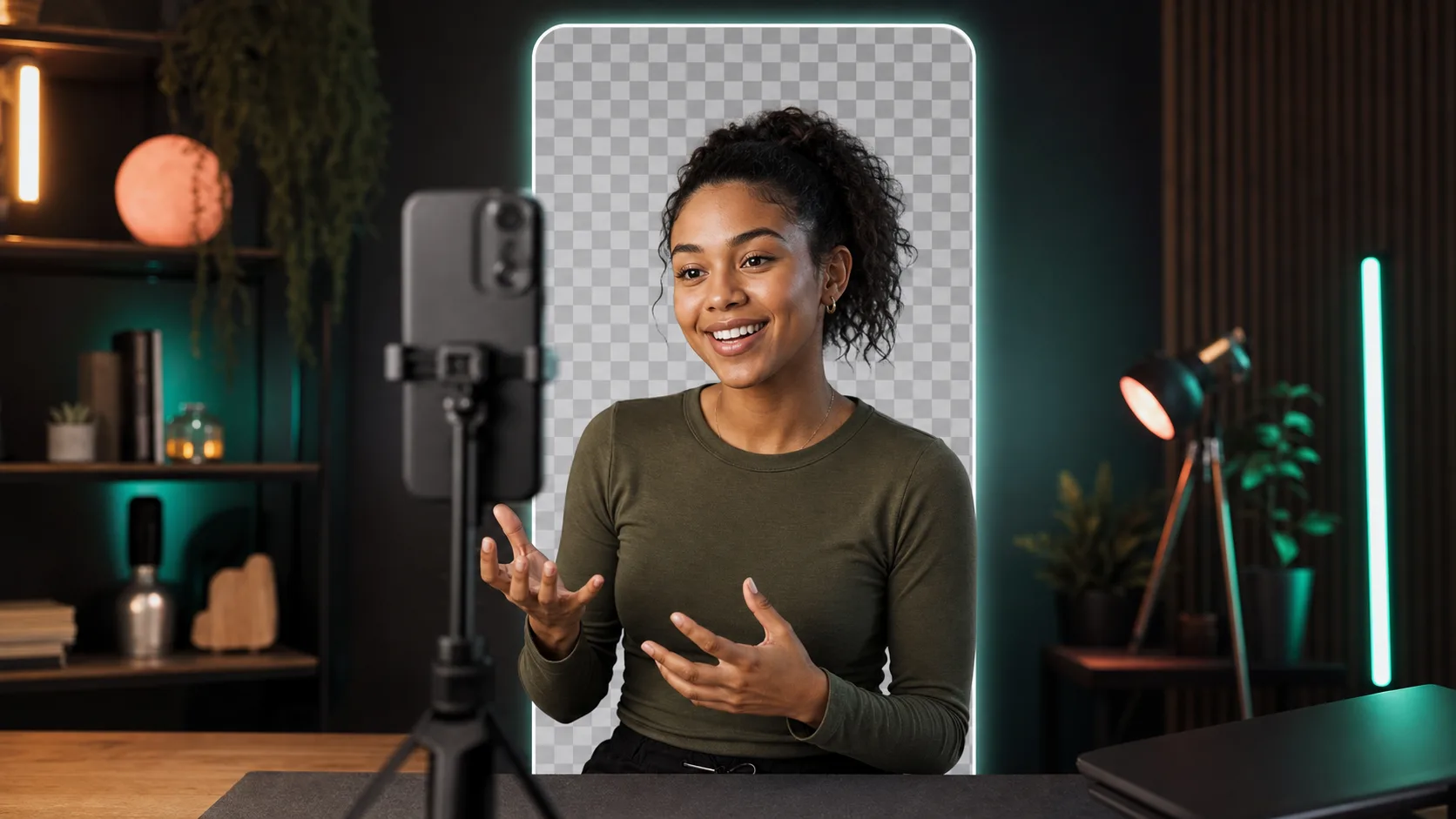
- Use a transparent master when editors need several show formats from the same recording.
- Avoid generated signage, tiny books, and pseudo-text that viewers may notice during a long episode.
Handle two hosts and multiple cameras
Process each isolated camera angle independently. A single matte cannot be stretched across a wide shot and two close-ups. If both hosts share one frame, verify that the tool retains both people and the gap between them. When guests overlap or one hand crosses another person's body, a manual matte repair may be faster than weakening every edge in the episode.
Create clips without rebuilding the episode
Keep the high-quality cutout or matte after finishing the horizontal episode. A vertical clip can place the current speaker larger in frame, move the co-host into a stacked layout, and reserve a clean caption zone. Spotify supports creator-uploaded video Clips, and YouTube can create clips or Shorts from long-form content; prepare a deliberate vertical composition instead of blindly cropping the middle of a wide conversation.
Treat captions and audio as primary content
Background work should never outrank intelligibility. Keep microphones close, repair noise before mixing music, and review automatic captions for names, accents, technical terms, and overlapping speech. Position burned-in social captions where they do not cover mouths, gestures, or the product being discussed. For the full episode, provide a proper caption track when the destination supports one.
Quality-control the full conversation
- Watch every camera cut for a jump in background scale, colour temperature, or horizon.
- Check hands touching microphones, headphones, glasses, and hair.
- Listen for sync drift after processing or changing frame rates.
- Review sponsor products and props to confirm they were not partially removed.
- Export a short proof to the final podcast platform before rendering the complete episode.
Sources and further reading
Frequently asked questions
Can I remove a video podcast background without a green screen?
Yes, especially for well-lit shots with clearly visible people. Test microphones, hands, chairs, co-hosts, and overlapping movement because a people-first model may not keep every prop.
Should I replace the background for an entire podcast episode?
Only if the result remains stable and the new set supports the show. A simple cleanup, crop, or mild blur may feel more natural than a highly synthetic room during a long conversation.
How do I turn a horizontal video podcast into vertical clips?
Keep each speaker as a reusable cutout or matte, then create a separate vertical composition with intentional speaker scale, caption space, and product or topic visuals instead of applying a center crop.
Quality gate
Three surfaces reveal different edge problems
Light background
Look for dark contamination, clipped hair, and hard matte boundaries.
Dark background
Look for pale halos, spill, and semitransparent noise around motion.
Final destination
Confirm playback, dimensions, compression, and transparency where viewers will see it.
Test the hardest podcast interaction first
Process a short section with gestures, microphones, and both speakers before committing the complete episode.
Create a podcast cutout