Production / virtual studio without green screen
How to create a virtual studio without a green screen
Build a believable virtual studio without a green screen by recording clean footage, removing the room with AI, matching the new set, and checking every edge.
The useful answer
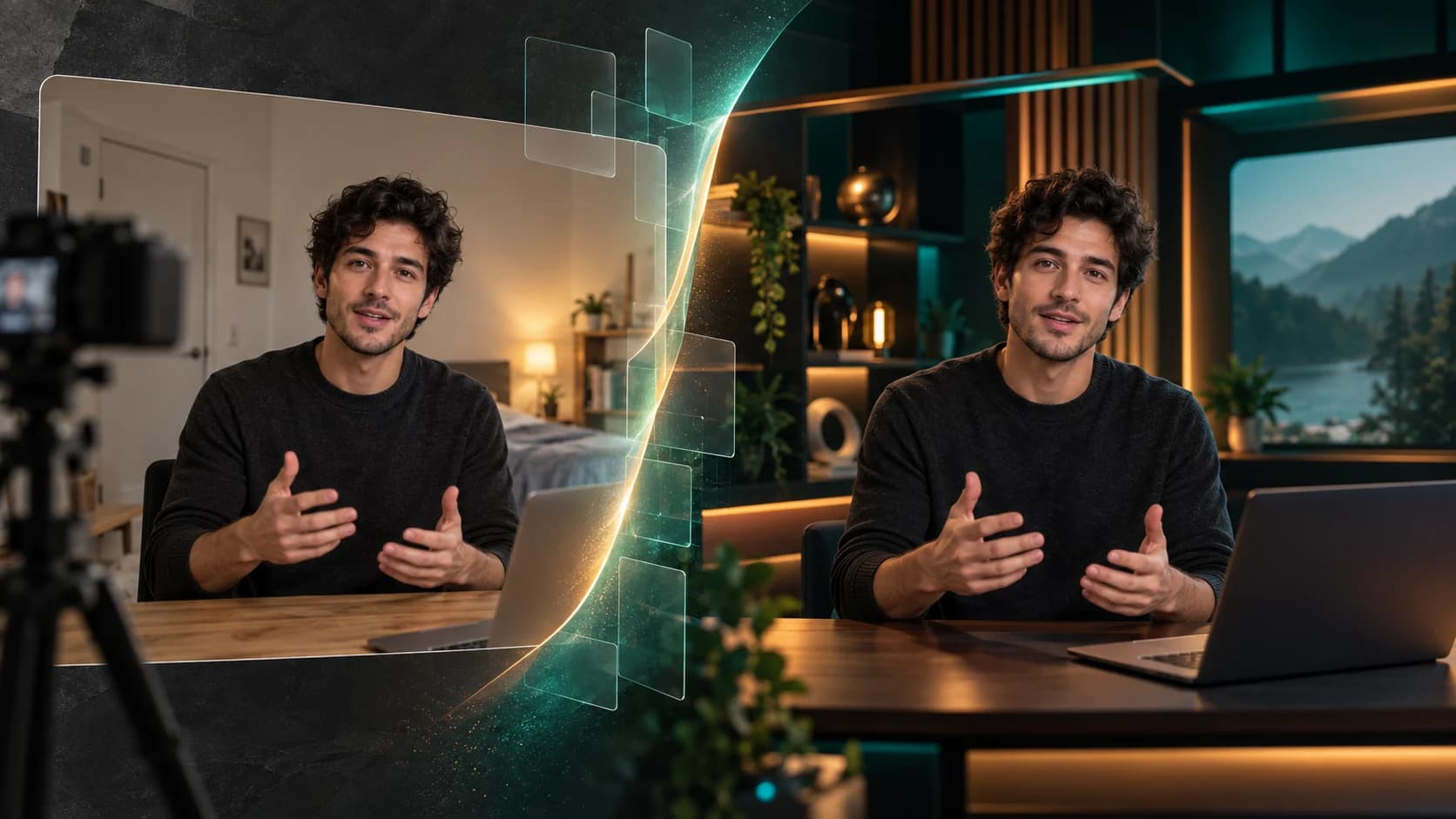
For recorded content, shoot a clean original, isolate the presenter, and composite the cutout into a set whose camera height, light, and depth match the source. Decide first whether you need post-production, a live virtual camera, or an in-camera LED stage.
Create a virtual-studio cutoutDecision map
From source clip to useful output
Define the destination
Decide where “virtual studio without green screen” must work before choosing a format or background.
Protect the moving edge
Review hair, hands, motion blur, and every place the subject crosses another object.
Test the real delivery
Open the result in the actual browser, editor, presentation, or social workflow.
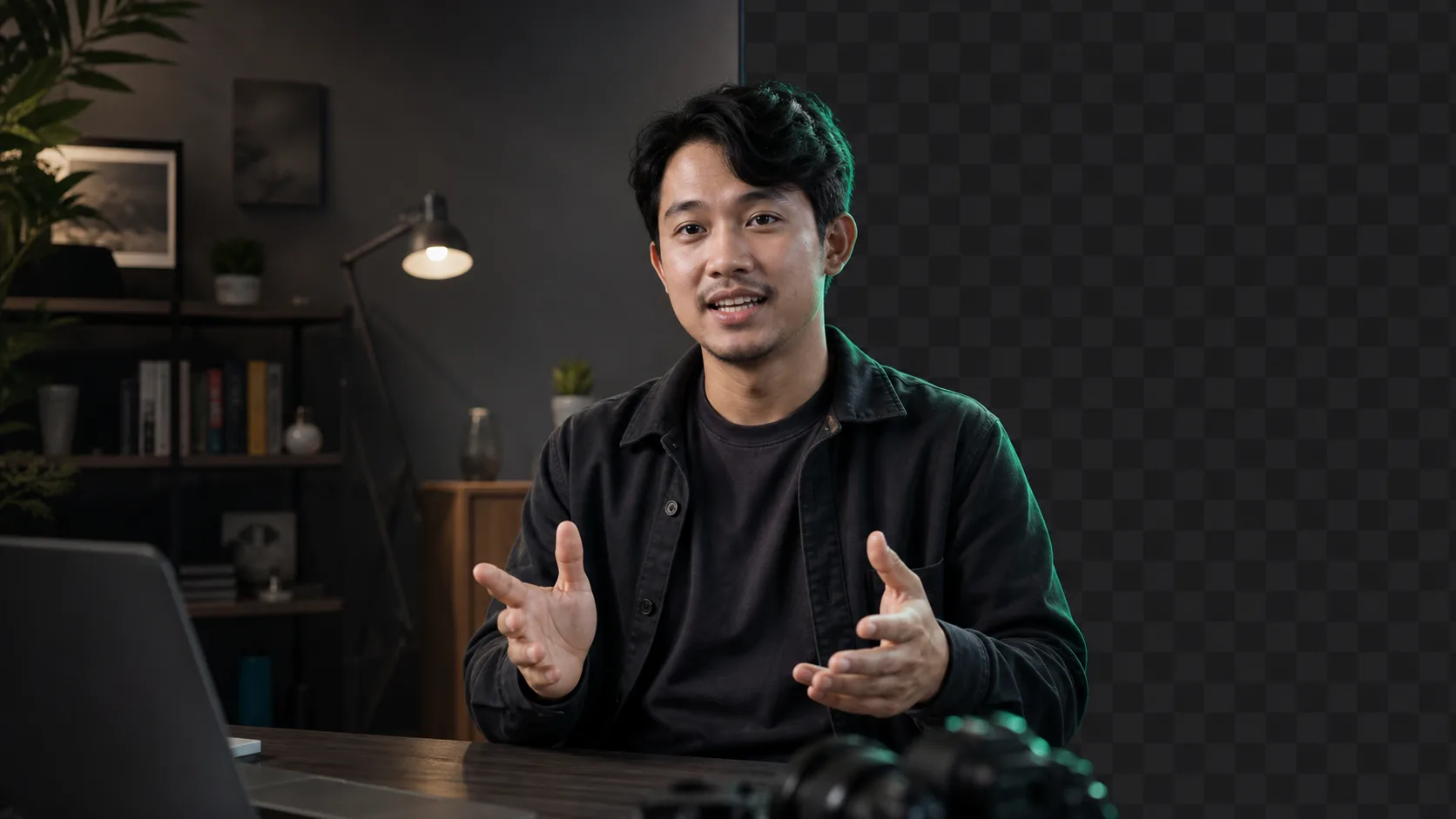
A virtual studio without a green screen can mean three very different things: a recorded presenter placed into a digital set after filming, a live background effect used during a call or stream, or a physical LED wall captured in camera. For most creators, courses, product demos, and company videos, the recorded post-production workflow is the simplest and most controllable.
AI segmentation replaces the color-key step. It estimates the foreground in every frame, so you can record against an ordinary wall or room. The virtual set still needs to agree with the source footage. Perspective, light direction, camera height, edge softness, and audio do more to sell the scene than adding expensive-looking furniture behind the speaker.
Choose the right kind of virtual studio
- Recorded post-production: best when quality and revision matter. Remove the background after recording and keep the foreground reusable.
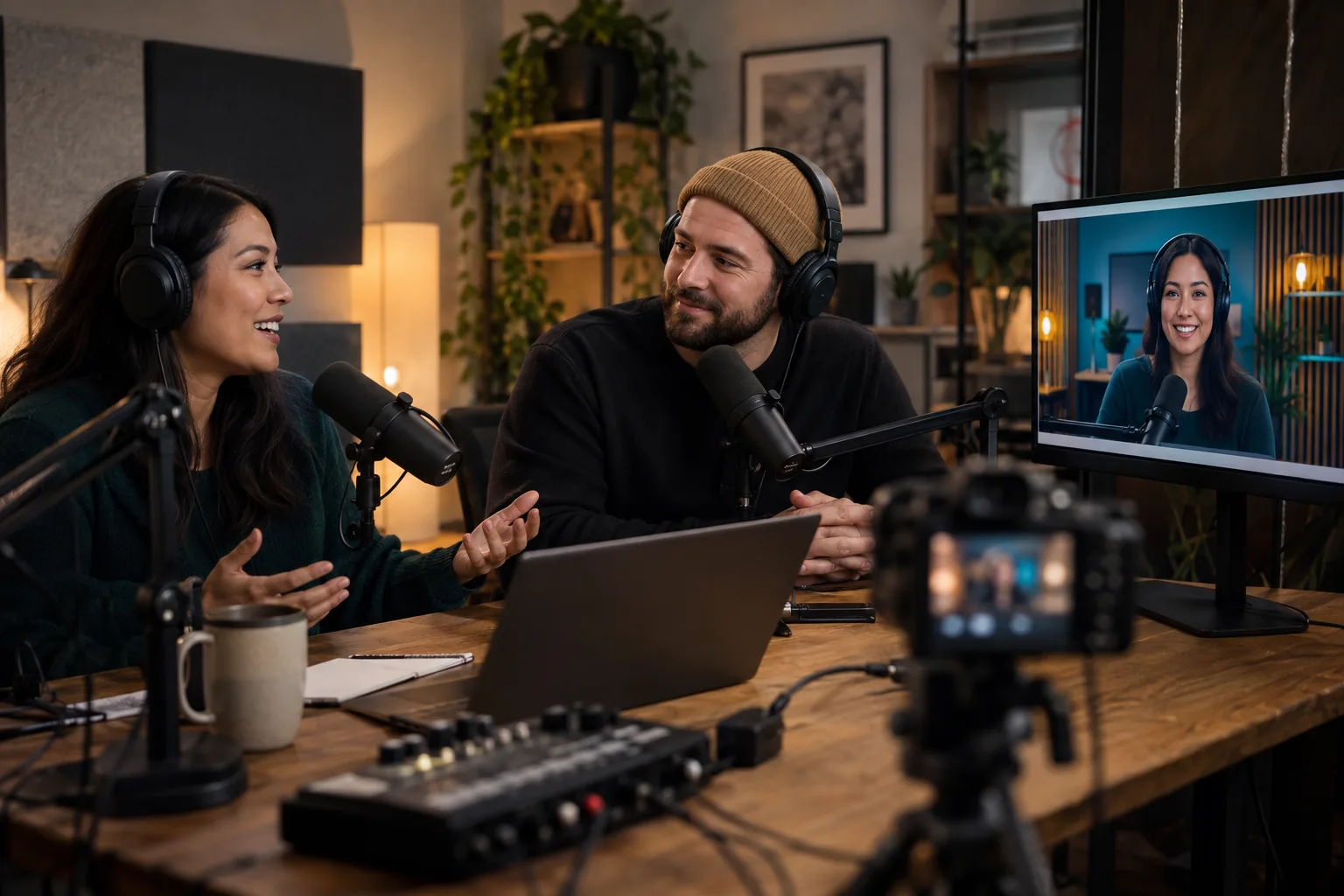
- Live virtual camera: best for meetings and streams where the composed scene must appear immediately. OBS can send a selected scene or source to apps that accept a webcam feed.
- LED-wall virtual production: best for in-camera reflections, interactive light, moving cameras, and high-end sets. It requires specialized display, rendering, tracking, and calibration hardware.
Build the recorded studio step by step
- 01
Design the shot
Decide whether the frame is a close talking head, seated lesson, standing presenter, or product demonstration. The set should support that specific framing.
- 02
Record a short movement test
Use the real camera, lighting, clothing, microphone, chair, and gestures. Ten difficult seconds reveal more than a perfect still frame.
- 03
Create the foreground
Remove the room with AI and choose transparent output or an alpha matte when the set will be assembled in an editor.
- 04
Place the virtual set
Match camera height, horizon, scale, light direction, and depth of field before adding decorative detail.
- 05
Review and export
Watch the full moving edge, confirm audio sync, then render a standard delivery file or retain a reusable transparent master.
Record footage that is easy to separate
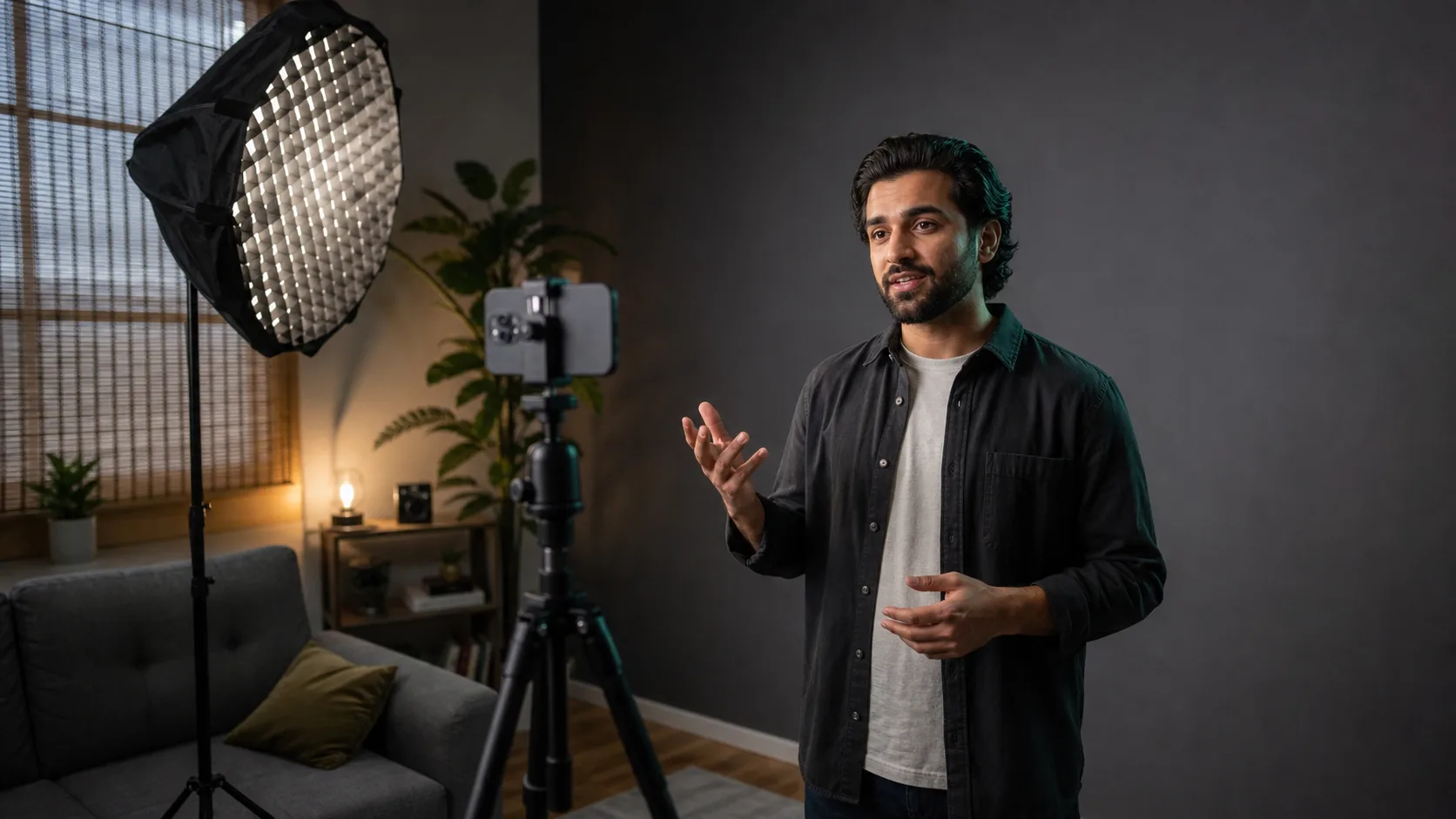
You do not need an empty white room, but the subject must remain visually distinct. Light the face and hair evenly, avoid strong backlight, and create contrast between clothing and the immediate background. Keep the camera stable and use enough light to reduce motion blur. If a table, chair, microphone, or product must remain, confirm that the removal model treats it as foreground before recording the complete session.
Match the virtual camera before decorating the set
Place the horizon and eye line first. A seated presenter shot at eye level will look wrong in a background designed as if the camera were high above the room. Match the apparent focal length: a wide-angle set behind a compressed portrait makes the subject look pasted in. Keep strong doorframes, shelves, and window edges away from hair, where they exaggerate small matte errors.
- Align the floor or desk height with the source body position.
- Match the direction and softness of the main light before adjusting color.
- Use moderate background blur that agrees with the source lens and subject sharpness.
- Keep logos and screens large enough to remain credible after video compression.
- Avoid tiny generated text, repeated objects, and impossible architecture that expose the illusion.
Create depth without making a cardboard cutout
A believable composite needs a small transition between subject and set. Preserve soft hair and motion edges, match black levels and color temperature, and add only a restrained shadow when the body should contact a desk or floor. Adobe’s object-masking documentation recommends starting from a frame where the subject is most visible; that same principle helps any tracked isolation begin with a clear boundary.
Know when a no-green-screen workflow is not enough
AI post-production is strongest for one or two visible people and controlled movement. A traditional chroma stage may still be more predictable for transparent fabrics, flying hair, smoke, multiple overlapping performers, or a long program that requires live keying. An LED volume is a separate in-camera method: Epic’s production documentation describes display geometry, camera tracking, synchronized rendering, color management, and the risk of moiré. It can remove the green spill problem, but it is not the low-cost version of an AI cutout.
Voor Nederlandse zoekers: filmset zonder greenscreen
Een filmset zonder greenscreen kan voor opgenomen presentaties eenvoudig worden opgebouwd: neem de spreker op in een rustige, goed verlichte ruimte, verwijder de achtergrond met AI en plaats de uitsnede in een virtuele studio. Controleer haar, handen, microfoons en beweging voordat je de volledige video verwerkt. Voor live uitzendingen heb je een realtime virtuele camera of een gespecialiseerde LED-studio nodig.
Final quality-control pass
- Watch hair, fingers, glasses, microphones, chair gaps, and overlapping props at normal speed.
- Check that the virtual room does not jump in scale or lighting between camera angles.
- Listen for audio-sync drift after processing or frame-rate conversion.
- Preview captions and graphics at the smallest delivery size.
- Keep the original recording and one high-quality foreground master for later set changes.
Sources and further reading
Frequently asked questions
Can I create a virtual studio without a green screen?
Yes. For recorded video, AI can isolate a visible presenter from an ordinary room so you can composite a virtual set afterward. Clear lighting, contrast, and limited motion blur improve the result.
Can I use this workflow live in Zoom or a stream?
Recorded background removal is not live. For real-time use, choose a meeting background effect or virtual-camera workflow such as OBS and accept that quality and latency constraints differ.
Is an LED wall the same as AI background removal?
No. An LED stage displays the environment physically behind the performer and captures it in camera. AI background removal separates the subject in software before or after compositing.
Quality gate
Three surfaces reveal different edge problems
Light background
Look for dark contamination, clipped hair, and hard matte boundaries.
Dark background
Look for pale halos, spill, and semitransparent noise around motion.
Final destination
Confirm playback, dimensions, compression, and transparency where viewers will see it.
Test your virtual set with a real movement
Process a short recording with hair, hands, and the actual microphone, then match the set before filming the full session.
Create a virtual-studio cutout